Exporting & Filtering Directory Data

SheetOps Google Sheets Add-on
This guide is for the official SheetOps add-on. Install it to manage Google Workspace at spreadsheet speed.
Exporting directory data is the first step to managing Google Workspace at spreadsheet speed. SheetOps connects directly to the Google Admin Directory APIs to pull your users, groups, members, and organizational units into Google Sheets.
To help you manage directories of all sizes without hitting Google Apps Script timeouts, SheetOps features advanced server-side filtering and customizable field selections.
What is Google Workspace Directory Exporting?
Google Workspace directory exporting is the process of retrieving user accounts, group memberships, and organizational unit (OU) data from the Google Admin Console into a spreadsheet format. This allows IT administrators to perform bulk auditing, employee provisioning, and security compliance checks directly inside Google Sheets.
Google Workspace Export Options
When you export an entity (Users, Groups, Members or Org Units), SheetOps presents a dialog with multiple options to determine how data is loaded:
Option 1: Fetch All (Full Export)
Downloads every record for that entity in your Google Workspace organization.
[!WARNING] For large organizations with 10,000+ users, running a full "Fetch All" may cause Google Apps Script to exceed its official 6-minute execution limit. For large directories, use Fetch with Filters instead.
Option 2: Fetch with Filters (Server-Side Filtering)
Tells SheetOps to pass query parameters to the Google Directory API. This reduces the number of rows downloaded, preventing timeouts and keeping your spreadsheet fast.
Option 3: Just the Sheet (Blank Templates)
Generates the sheet structure, headers, status dropdowns, and edit tracking checkboxes without loading any data. This is ideal if you want to manually enter new records for bulk creation or paste specific emails to update them.
Detailed Entity Export Filters
1. Filtering Google Workspace Users
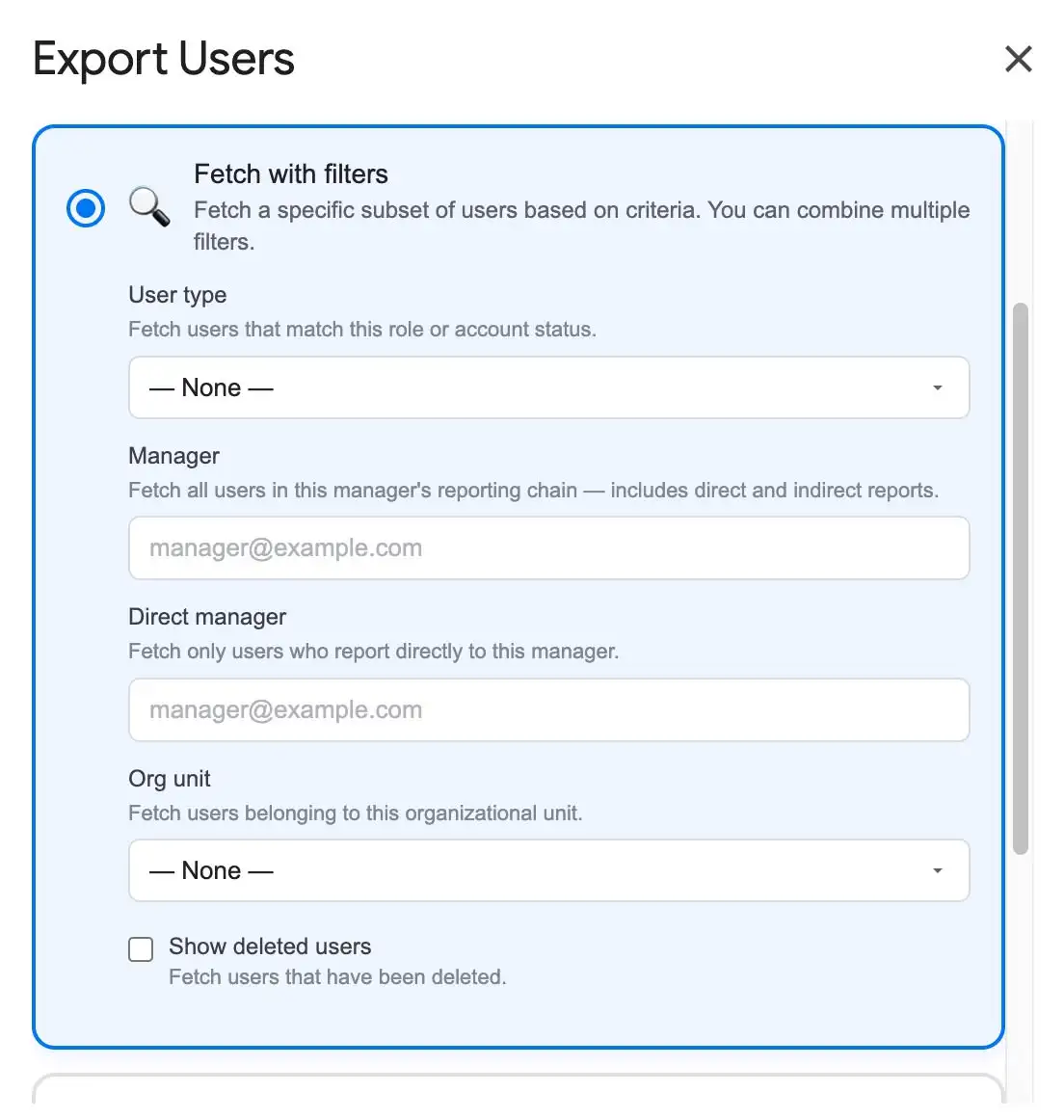
When exporting users via Fetch with Filters, you can combine these filters (implicit AND logic):
- User type (Dropdown): Filter for Admin, Delegated Admin, Suspended, Archived, or Guest accounts.
- Manager (Email): Exports the manager's entire reporting chain (direct and indirect reports).
- Direct manager (Email): Exports only users who report directly to this manager.
- Org unit (Dropdown): Dynamically lists your OUs and filters users in that specific unit.
- Show deleted users (Checkbox): Queries recently deleted users (restorable within 20 days) instead of active ones.
2. Filtering Group Members
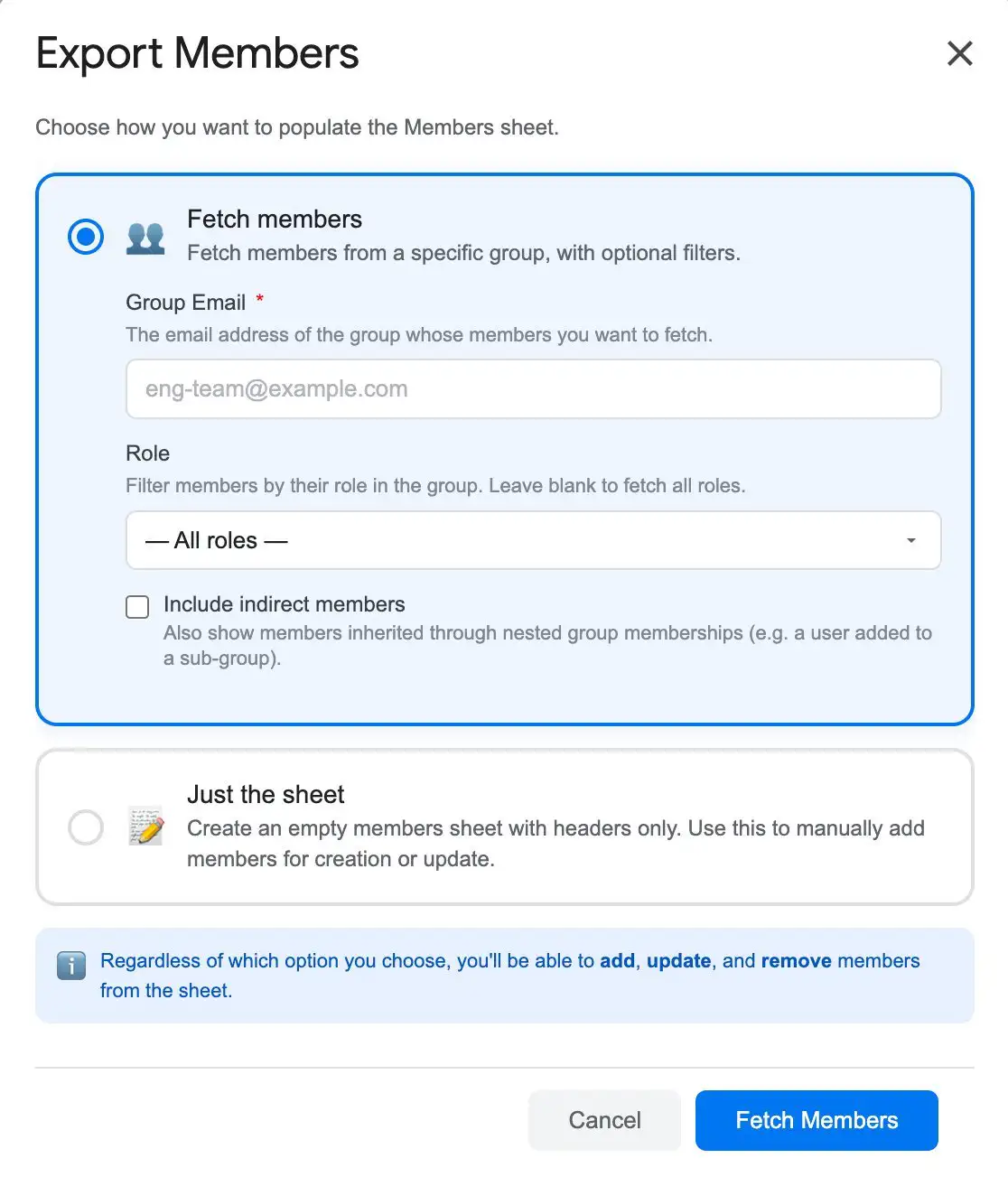
Group memberships must be fetched group-by-group:
- Group Email (Required): The email of the group you want to export.
- Role (Dropdown): Filter members by role (
OWNER,MANAGER,MEMBER). - Include indirect members (Checkbox): Pulls members who inherit group membership through nested groups (
includeDerivedMembership=true).
3. Groups & Organizational Units (Full Export Only)
Because groups and organizational units typically exist in much lower volumes than users and memberships, SheetOps does not require complex filters for these entities:
- Groups: Go to Extensions → SheetOps → Groups to export your entire group list.
- Org Units: Go to Extensions → SheetOps → Org Units to export the hierarchical tree of your organizational units.
Customizing Columns: Choose Display Fields
You do not need to export all fields every time. You can choose which columns appear in your spreadsheet:
- Go to Extensions → SheetOps → Choose display fields.
- Select the tab for the entity you want to configure (Users, Groups, OUs, or Members).
- Check the fields you want to view, and uncheck the ones you want to hide. Required fields (like email and ID) are frozen and cannot be unchecked.
- Click Save.
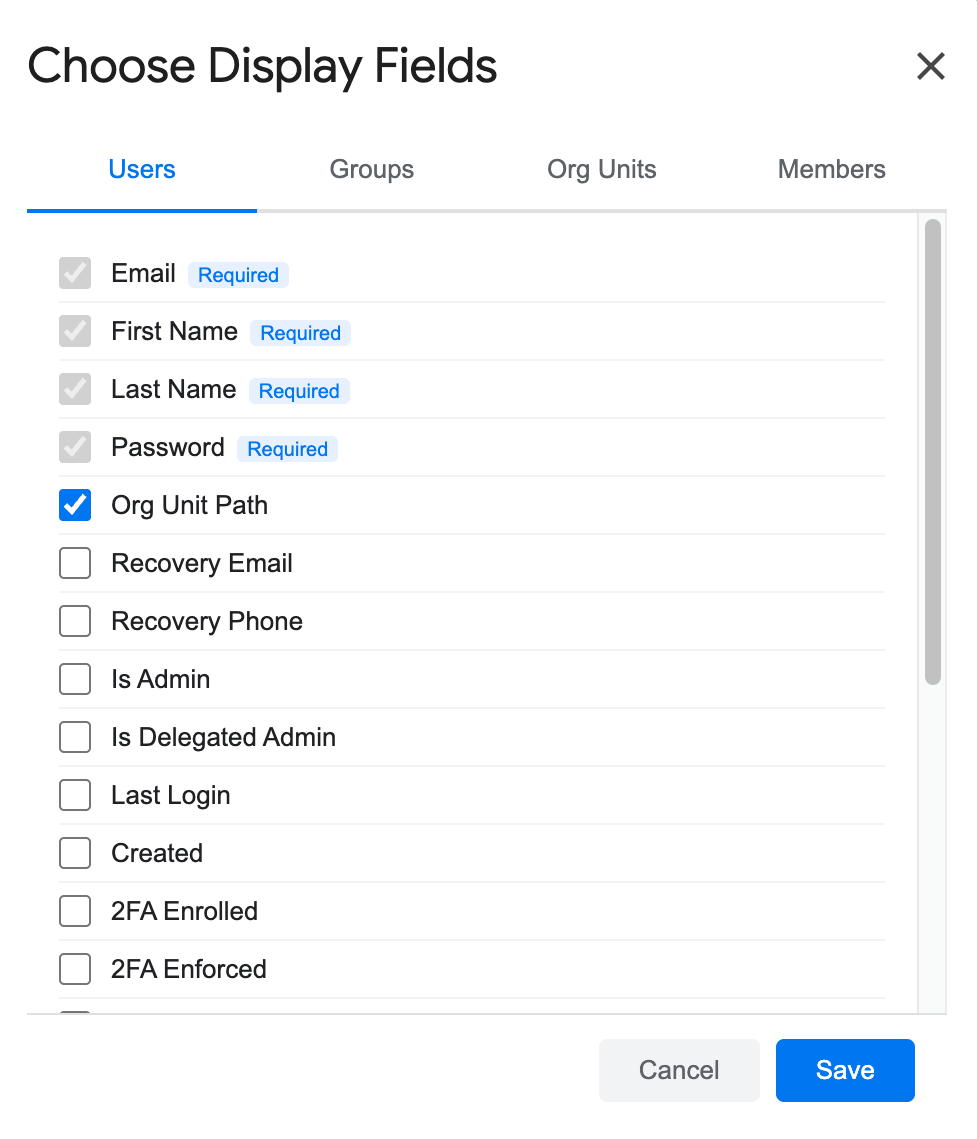
[!TIP] Saving your display fields dynamically redraws the sheet columns without making new API calls. This preserves any unsaved edits (highlighted in yellow) you've already made.
Frequently Asked Questions (FAQ)
How can I export a directory with 50,000+ users?
Instead of a full export (which will time out), use Fetch with Filters to export users in segments. You can export user lists by specific Org Units or by Manager Chains, clean up or update that segment, apply changes, and then move to the next segment.
Why is the ID column hidden in my sheet?
SheetOps uses the internal Google unique ID as the primary key for updates and deletions. It is hidden in Column A to keep your spreadsheet clean, but you must not delete or modify this column as SheetOps relies on it for change tracking.
Why do some cells remain blank after updating my display fields?
When you add new columns via the "Choose display fields" dialog, SheetOps appends the new headers and leaves the data cells blank to prevent incorrect default choices. To populate them with fresh data from Google, simply re-run your export.
Last updated: June 17, 2026

Ready to manage Workspace at spreadsheet speed?
Install SheetOps from the Google Workspace Marketplace today and start performing bulk directory updates, onboarding, and audits directly inside Google Sheets.