Bulk Create Google Workspace Users from Sheets

SheetOps Google Sheets Add-on
This guide is for the official SheetOps add-on. Install it to manage Google Workspace at spreadsheet speed.
Creating users individually in the Google Admin Console is slow and repetitive. SheetOps lets you bulk import and create hundreds of Google Workspace users in a single operation, directly from your Google Sheet.
Understanding Bulk User Creation in Google Workspace
SheetOps utilizes the Google Admin Directory API to insert new user records. You populate a sheet with your new user details, select the Apply Changes option, and SheetOps executes the creations sequentially in the background, writing the results back to your sheet in real time.
Google Admin CSV vs. GAM vs. SheetOps
While the Google Admin Console supports manual creation and CSV uploads, and GAM offers command-line automation, each has limitations for everyday management:
| Criteria | Admin Console CSV | GAM CLI | SheetOps |
|---|---|---|---|
| Interface | Form uploads (CSV) | Command Line | Google Sheets |
| Validation | Post-upload errors | None (requires scripting) | Live Delta-Validation (Yellow Highlight) |
| Safety Net | None | High risk of bulk errors | Permission safeguards + Visual preview |
| Setup Time | Immediate (fragile) | High (requires local installs) | Immediate (browser-based) |
Step-by-Step Guide to Importing and Creating Google Workspace Users
1. Prepare Your Spreadsheet Template
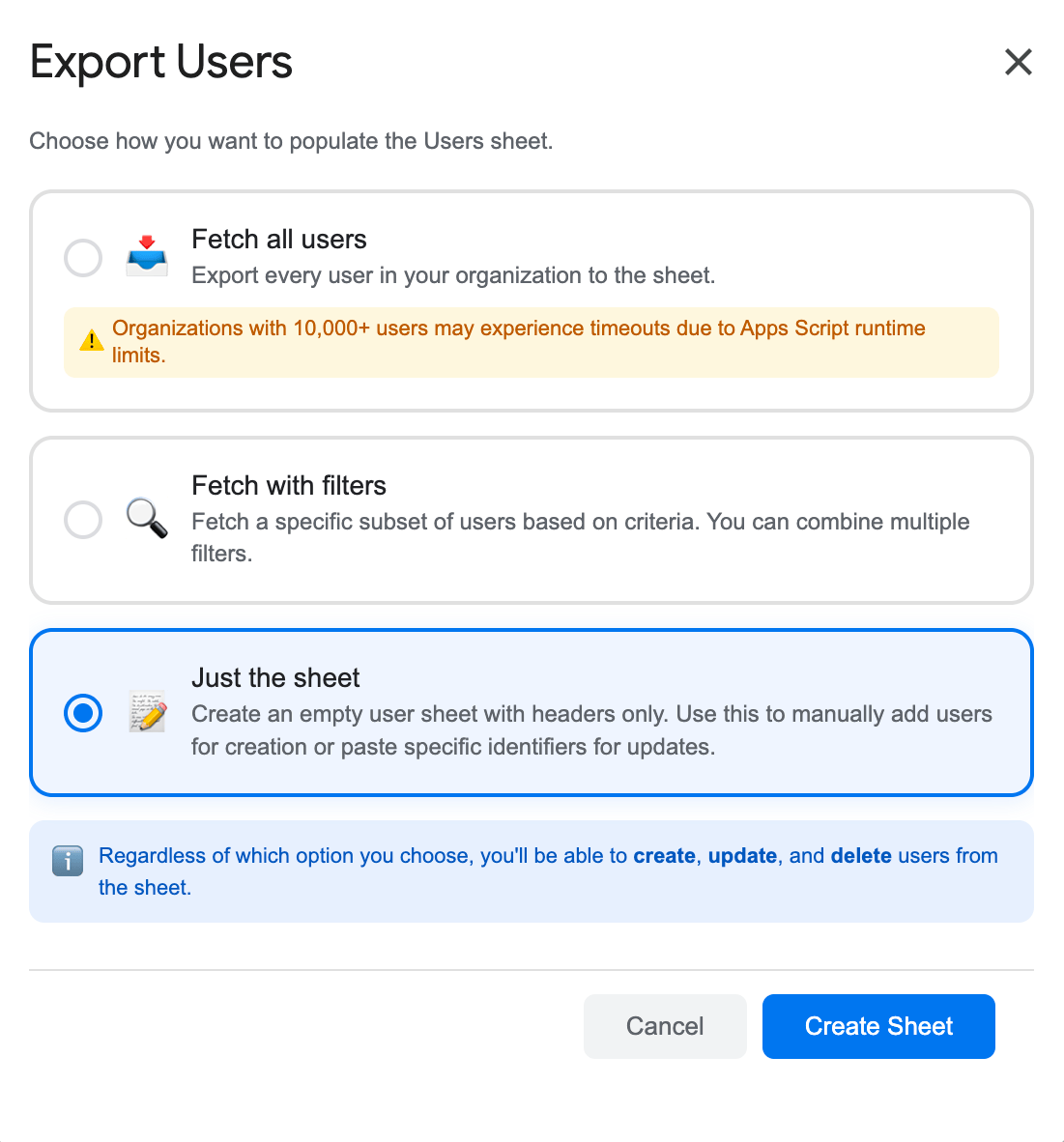
Go to Extensions → SheetOps → Users. In the export options dialog, select Just the Sheet, and then click Create Sheet. This generates a clean template with headers, validation dropdowns, and checkboxes, but no data rows.
2. Input Your New User Information
Add your user data to the sheet. The required fields are:
- Email (Primary Identifier): The new user's email address (e.g.,
[email protected]). - First Name and Last Name: The user's name details.
- Password: The temporary password for the user. (This column is write-only; it will be cleared after creation for security).
In addition to the required fields, users can also add an Org Unit Path, aliases, etc. You can easily copy and paste multiple rows of user data at once. All cells with pending data will be highlighted in yellow, waiting to be created.
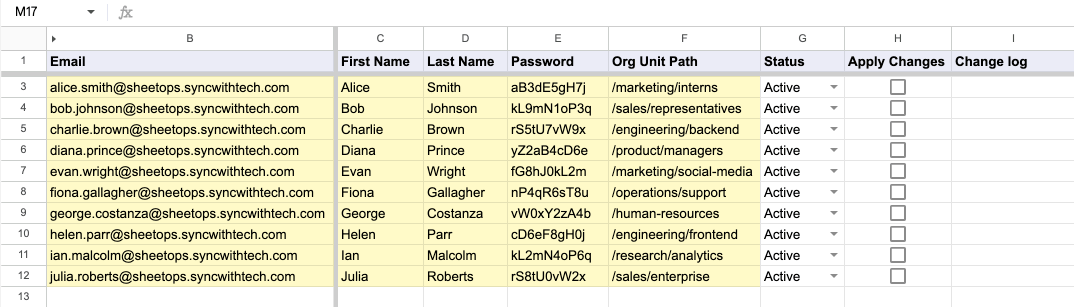
[!TIP] When you enter data, SheetOps automatically applies a yellow background to the edited cells. This visual indicator helps you keep track of pending changes before you push them.
3. Select Multiple Checkboxes at Once
Instead of checking every single box one by one, you can check many of them all at once!
- Click on a checkbox cell in the Apply Changes column.
- To select the other cells:
- Click and Drag: Hold your mouse button down and drag your cursor over the other checkboxes.
- Shift + Click: Press and hold the Shift key on your keyboard, then click the last checkbox cell in your list. This highlights all the cells in between!
- Press the Spacebar on your keyboard to instantly check all the selected boxes at the same time.
4. Confirm the Creation in the Interactive Dialog
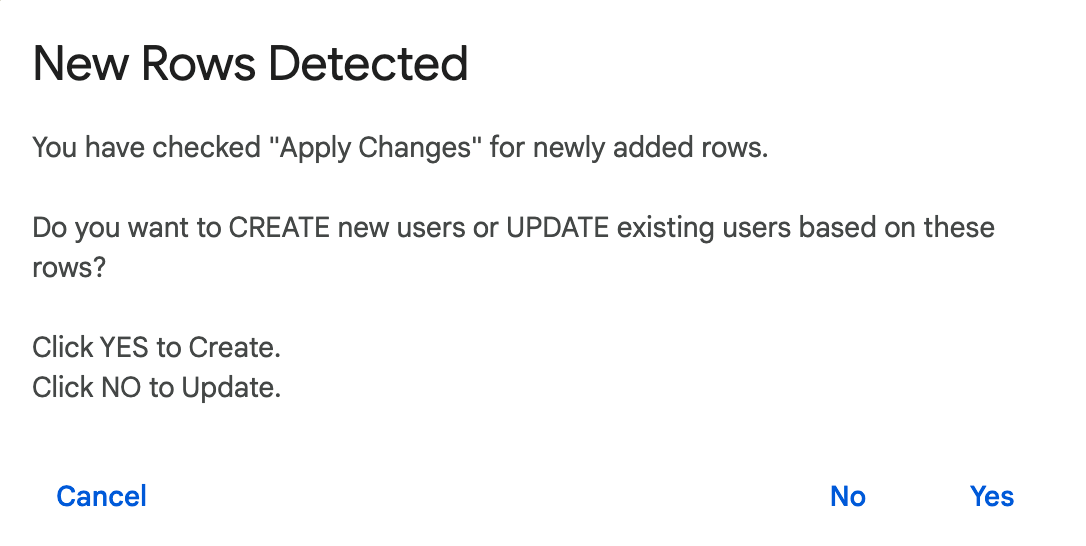
Once you press the Spacebar, an interactive dialog will pop up asking: "Do you want to CREATE new users or UPDATE existing users?" Select Yes (Create) to tell SheetOps to start creating your new users.
5. Review the API Result and Change Logs
As SheetOps goes to work creating the users in the background:
- The yellow highlights will disappear as each row is processed.
- The Change log column (the last column on the right) will show the status:
- ✓ Created (highlighted in light green) with a green checkmark when creation succeeds, along with the user's new internal Google ID.
- ✗ error_message (highlighted in light red) if something goes wrong, explaining the error.
Troubleshooting Google Workspace Bulk Creation Errors
- License Limits: If you are using the free version of SheetOps, you can perform up to 20 write operations before needing to upgrade.
- Email Domain Validation: The email domain must match one of the verified domains in your Google Workspace account.
- Timeout Limitations: Apps Script limits executions to a 6-minute execution limit. If you are importing 1,000+ users, process them in batches of 100-200 rows at a time to avoid script timeouts.
Frequently Asked Questions (FAQ)
Can I set more fields when creating users in bulk?
Yes! You can add more user fields using the Choose display fields dialog. Any additional fields you check will be drawn as blank columns, and you can fill them out before checking 'Apply Changes' to include them in the creation payload.
What happens if I choose 'Update' instead of 'Create' for new rows?
If you choose 'Update' for a row that does not contain an internal ID in Column A, SheetOps will use the user's Primary Email as the API identifier. If that user already exists in Google Workspace, it will update their details; if they do not exist, the API will return a 'User Not Found' error.
Why is the password cleared after I create the user?
For security and privacy compliance, SheetOps removes the password string from the spreadsheet immediately after a successful API creation call. This prevents temporary passwords from being exposed to other spreadsheet viewers.
Last updated: June 17, 2026

Ready to manage Workspace at spreadsheet speed?
Install SheetOps from the Google Workspace Marketplace today and start performing bulk directory updates, onboarding, and audits directly inside Google Sheets.