Bulk Move Google Workspace Users to Organizational Units (OUs)

SheetOps Google Sheets Add-on
This guide is for the official SheetOps add-on. Install it to manage Google Workspace at spreadsheet speed.
Bulk Organizational Unit (OU) assignment in Google Workspace refers to moving multiple user profiles into different administrative branches simultaneously. While the native Google Admin Console requires manual one-by-one adjustments or tedious CSV uploads, SheetOps allows administrators to perform bulk updates and reassignments directly inside a Google Sheets spreadsheet.
Understanding User-to-OU Assignment Mechanics
In SheetOps, every user row contains an Org Unit Path column (orgUnitPath). By modifying this path, you will eventually instruct SheetOps to make an API update moving the user to the specified Organizational Unit.
Google Admin Console vs. GAM CLI vs. SheetOps
To help you choose the best workflow for your needs, here is a comparison of the primary methods for bulk OU updates:
| Feature | Google Admin Console | GAM CLI | SheetOps (Spreadsheet) |
|---|---|---|---|
| Workflow | Manual user-by-user clicks or multi-step CSV file uploads | Write command-line syntax or build batch scripts for execution | Edit cells directly in Google Sheets and tick checkboxes to apply |
| Skill Curve | Low (basic admin dashboard interface) | High (requires terminal familiarity, API setup, and scripting) | Low (leverages standard spreadsheet edits and mouse actions) |
| Visual Staging | None (updates apply immediately or via blind CSV processing) | None (commands run immediately without a visual review state) | Yellow highlights flag pending changes before committing them |
| Execution Logs | Checked via email reports or Admin Console Tasks dashboard | Standard terminal stdout/stderr logs | Real-time status updates directly in the sheet's Change Log column |
How to Bulk Assign Users to Organizational Units
1. Prepare Your Spreadsheet Template
To target and update users, you have two options to bring them into the sheet:
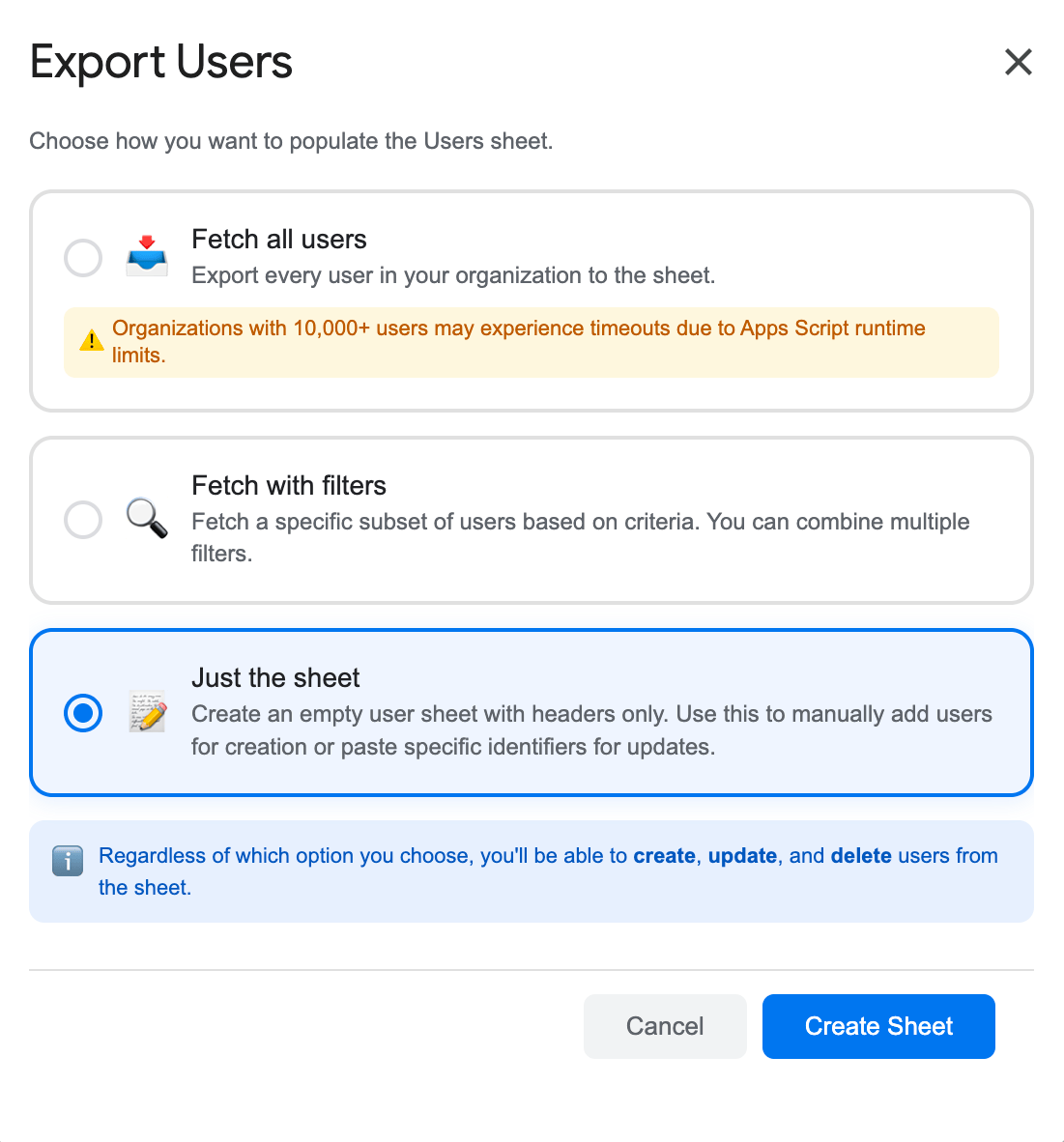
- Fetch with Filters: Go to Extensions → SheetOps → Users, select Fetch with Filters, and choose your target criteria (such as a specific organizational unit) to bring existing users to the sheet. For a detailed guide on how to filter workspace users, refer to the filtering guide. Once imported, you can assign/reassign organizational units for them.
- Just the Sheet: Go to Extensions → SheetOps → Users, select Just the Sheet, and click Create Sheet to generate a clean template. You can then simply input the user email and organization unit before checking the Apply Changes checkbox.
2. Input Organizational Unit Changes
In the user sheet, locate the Org Unit Path column:
- Input or change the cell values to the target OU paths. For example, to move a user to the Design team under Marketing, enter
/Marketing/Design. - Double-check that you use the exact path syntax, starting with a forward slash (
/). - All cells with pending data or updates will highlight yellow.
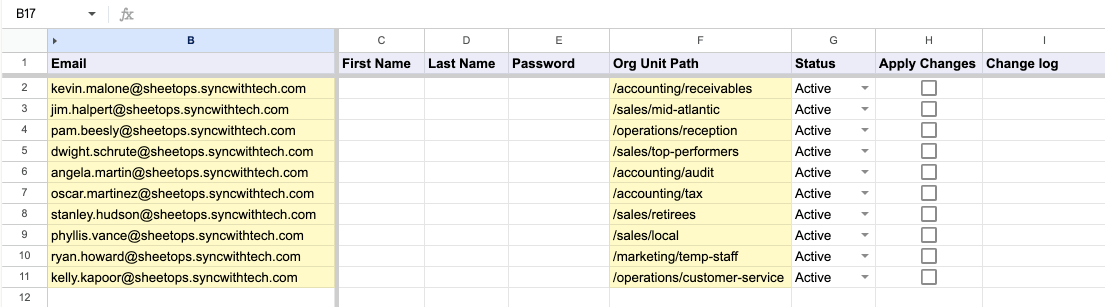
[!TIP] When you enter data, SheetOps automatically applies a yellow background to the edited cells. This visual indicator helps you keep track of pending changes before you push them.
[!WARNING] The target Organizational Unit must already exist in your Google Workspace directory before moving users into it. If you need to create a new OU first, refer to the Bulk Create Organizational Units documentation.
3. Select Multiple Checkboxes at Once
Instead of checking every single box one by one, you can check many of them all at once!
- Click on a checkbox cell in the Apply Changes column.
- To select the other cells:
- Click and Drag: Hold your mouse button down and drag your cursor over the other checkboxes.
- Shift + Click: Press and hold the Shift key on your keyboard, then click the last checkbox cell in your list. This highlights all the cells in between!
- Press the Spacebar on your keyboard to instantly check all the selected boxes at the same time.
4. Confirm the Update in the Interactive Dialog
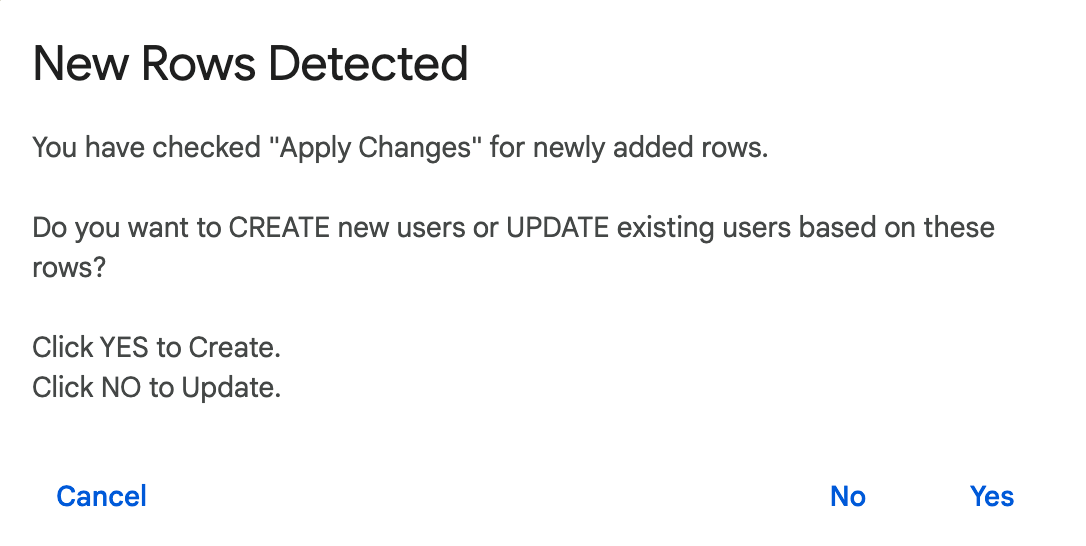
Once you press the Spacebar, an interactive dialog will pop up asking: "Do you want to CREATE new users or UPDATE existing users?" Select No (Update) to tell SheetOps to start updating your existing users' organizational units.
5. Review the API Result and Change Logs
As SheetOps goes to work updating the users in the background:
- The yellow highlights will disappear as each row is processed.
- The Change log column (the last column on the right) will show the status:
- ✓ Updated (highlighted in light green) with a green checkmark when the update succeeds.
- ✗ error_message (highlighted in light red) if something goes wrong, explaining the error.
Troubleshooting & Best Practices
- Avoid Root Assignments: Placing users in child OUs rather than the root directory (
/) is a security best practice. Google recommends keeping the root OU reserved for top-level policy overrides and placing actual users in sub-OUs (see Google Workspace Organizational Structure). - Inheritance Delay: Policy and licensing settings applied via OUs may take up to 24 hours to propagate throughout Google Workspace. According to Google Workspace Service Propagation, while the directory update itself is instantaneous, service settings and policy changes can take up to 24 hours to apply to all users.
Frequently Asked Questions (FAQ)
What is the correct format for the Org Unit Path?
OUs in Google Workspace are formatted as hierarchical paths. The root organizational unit is /. Nested units must use forward slash separators, for example, /Departments/Engineering or /Sales/Europe. Do not omit the leading slash or end the path with a trailing slash.
Will moving a user to a new OU change their email address?
No. Moving a user to a different Organizational Unit only changes their administrative settings, permissions, and applied Google policies. Their primary email address, aliases, password, and Google Drive files remain completely unchanged.
Can I move multiple users to different OUs in a single operation?
Yes. You can edit the orgUnitPath cells for different users to point to completely different OUs. For example, Row 2 can point to /Marketing while Row 3 points to /Engineering. Tick 'Apply Changes' for both rows and apply; SheetOps will route each user to their respective OU.
Last updated: June 18, 2026

Ready to manage Workspace at spreadsheet speed?
Install SheetOps from the Google Workspace Marketplace today and start performing bulk directory updates, onboarding, and audits directly inside Google Sheets.