Bulk Archive Google Workspace Users from Sheets

SheetOps Google Sheets Add-on
This guide is for the official SheetOps add-on. Install it to manage Google Workspace at spreadsheet speed.
Archiving user accounts is a cost-effective way to preserve data from former employees (like Google Drive files and emails) without paying for a full Google Workspace license. SheetOps supports bulk archiving and reactivation.
[!NOTE] Quick Answer: To bulk archive Google Workspace users with SheetOps: export your users to a sheet, change their Status to Archived, select the Apply Changes checkboxes, and execute the update. This immediately revokes login access and preserves user data at a reduced subscription cost.
Understanding User Archiving Mechanics
In SheetOps, every user row contains a Status column (status). By modifying this value to Archived, you instruct SheetOps to make an API update to archive the user. Under the hood, SheetOps sets the archived flag to true and the suspended flag to false in the Google directory payload.
Google Admin Console vs. GAM vs. SheetOps for User Archiving
While you can archive users manually in the Google Admin Console or write terminal scripts using GAM, SheetOps provides a safer, faster way to manage archiving at scale:
| Criteria | Admin Console | GAM CLI | SheetOps |
|---|---|---|---|
| Bulk Operations | Manual page-by-page selection or rigid CSV uploads | Scripted command-line commands | Familiar copy-paste and fill-handle drag in spreadsheets |
| Workflow Speed | Slow (requires navigating individual profiles) | Fast but requires scripting and command assembly | Instant (apply changes to hundreds of rows at once) |
| Delta Preview | None (direct API updates) | None (requires dry-run arguments) | Live validation (pending changes highlighted in yellow) |
| Reactivation | Manual toggle per user | Requires running another CLI command | Toggle status to 'Active' and press Spacebar |
How to Bulk Archive Google Workspace Users
1. Prepare Your Spreadsheet Template
To target and update users, you have two options to bring them into the sheet:
- Fetch with Filters: Go to Extensions → SheetOps → Users, select Fetch with Filters, and choose your target criteria (such as a specific organizational unit) to bring existing users to the sheet. For a detailed guide on how to filter workspace users, refer to the filtering guide. Once imported, you can archive accounts as needed.
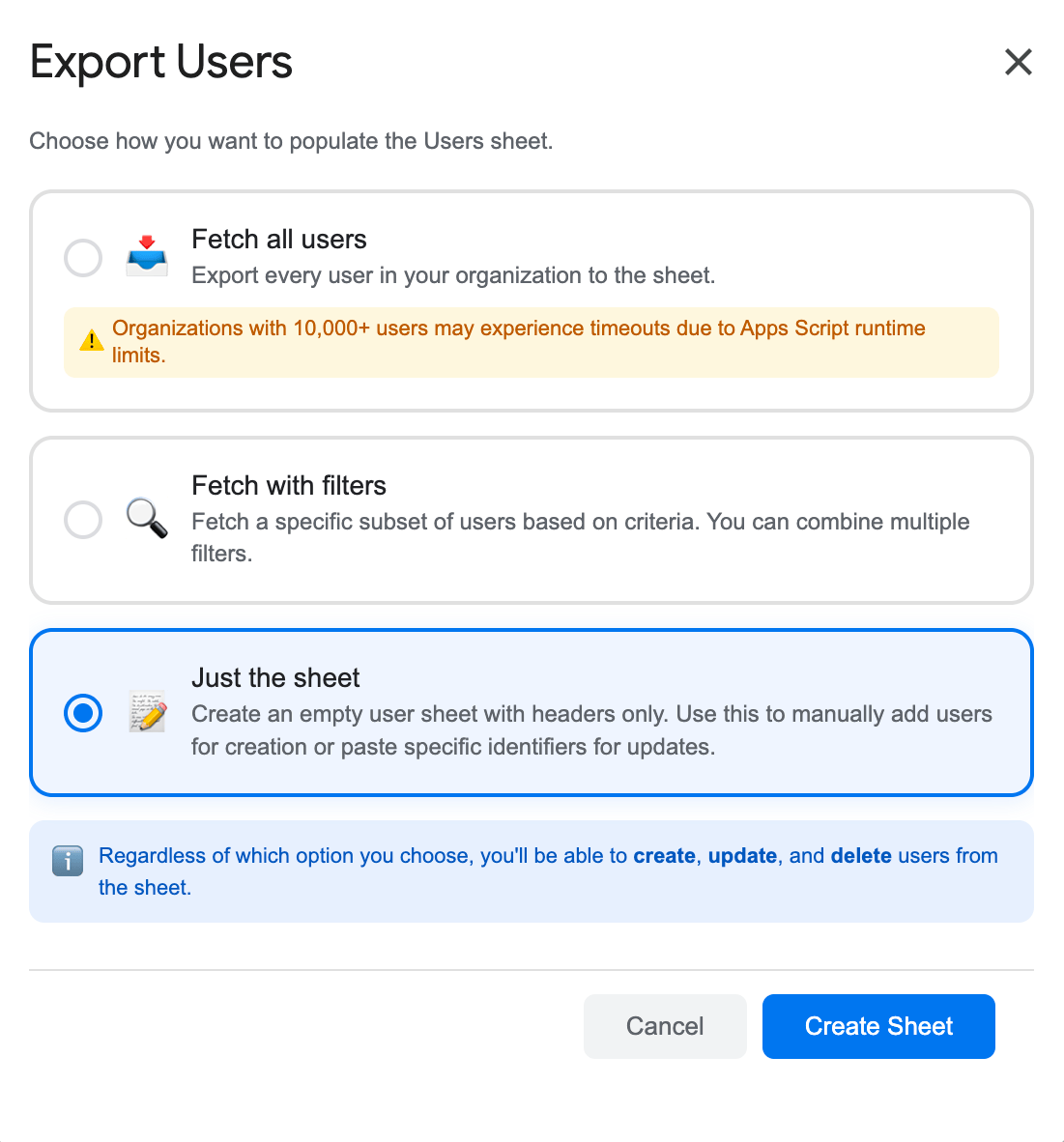
- Just the Sheet: Go to Extensions → SheetOps → Users, select Just the Sheet, and click Create Sheet to generate a clean template. You can then simply input the user email and change their status.
2. Modify Status to Archived
In the user sheet, locate the Status column (the third-to-last column):
- For the first user you want to archive, select Archived from the dropdown menu.
- Bulk Action Tip: Instead of manually selecting the dropdown for every single row, you can select the "Archived" value on the first row, click and hold the fill handle (the small square in the bottom-right corner of the cell), and drag it down over the other user rows. This instantly copies the Archived status across all selected rows.
- All cells with pending data or updates will highlight yellow.
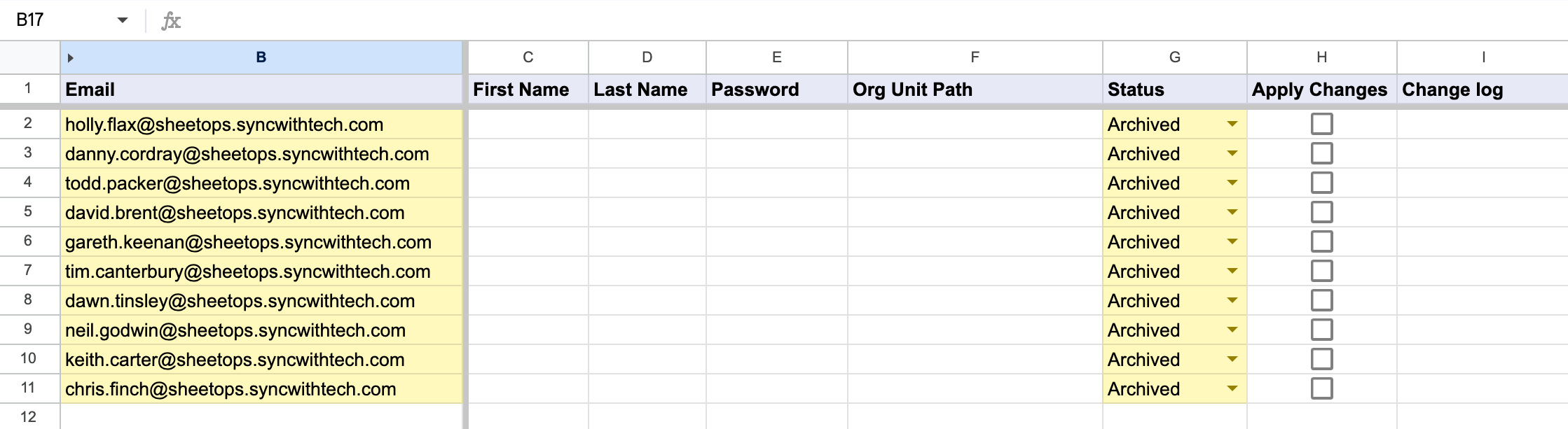
[!TIP] When you enter data or select dropdown choices, SheetOps automatically applies a yellow background to the edited cells. This visual indicator helps you keep track of pending changes before you push them.
3. Select Multiple Checkboxes at Once
Instead of checking every single box one by one, you can check many of them all at once!
- Click on a checkbox cell in the Apply Changes column.
- To select the other cells:
- Click and Drag: Hold your mouse button down and drag your cursor over the other checkboxes.
- Shift + Click: Press and hold the Shift key on your keyboard, then click the last checkbox cell in your list. This highlights all the cells in between!
- Press the Spacebar on your keyboard to instantly check all the selected boxes at the same time.
4. Confirm the Update in the Interactive Dialog
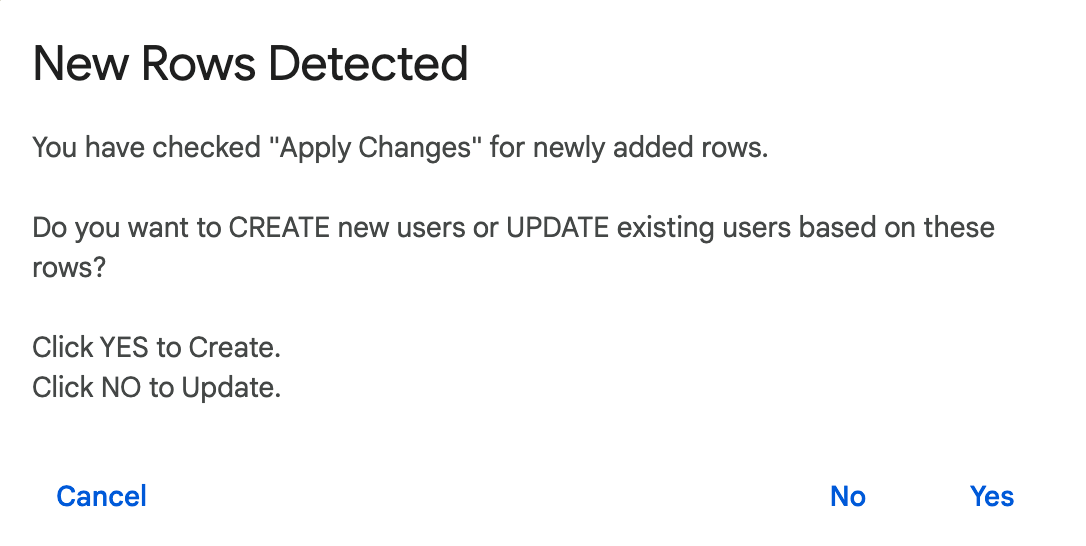
Once you press the Spacebar, an interactive dialog will pop up asking: "Do you want to CREATE new users or UPDATE existing users?" Select No (Update) to tell SheetOps to start updating your existing users' status to archived.
5. Review the API Result and Change Logs
As SheetOps goes to work updating the users in the background:
- The yellow highlights will disappear as each row is processed.
- The Change log column (the last column on the right) will show the status:
- ✓ Updated (highlighted in light green) with a green checkmark when the update succeeds.
- ✗ error_message (highlighted in light red) if something goes wrong, explaining the error.
How to Reactivate Archived Users
If you need to restore access to an archived user account, you can perform the exact same update flow but change their status back to active:
- Locate the suspended user row in your sheet (or use Fetch with Filters and set User type to Archived to load them).
- Change the value in the Status column to Active. You can also use the drag-to-fill handle to restore multiple users in bulk.
- Check the Apply Changes column for those rows (using the multi-select Spacebar trick for bulk operations).
- Click apply, and in the interactive confirmation dialog, select No (Update).
- Once complete, the Change log will display ✓ Updated, and the user's login access will be immediately restored.
Troubleshooting & Best Practices
- Archive Licensing: Your Google Workspace domain must have Google Workspace Archive User licenses available. If you try to archive a user and do not have these licenses, the API call will fail.
- Service Access: Archived users cannot log in or receive new emails. Their mailbox will bounce incoming messages unless forwarding is set up prior to archiving.
- Vault Searchability: Google Vault continues to index and preserve the archived user's data. You can search, hold, and export their Google Drive files and Gmail messages for eDiscovery.
- License Cost Savings: Archiving is significantly cheaper than keeping users active or suspended. While suspended accounts continue to incur full subscription fees, converting accounts to Archive User (AU) licenses typically costs between $1.50 and $7.00 per user/month (representing a 75% to 80% cost reduction), while still preserving data securely. If you only need temporary login restrictions, refer to our bulk suspend guide. If you wish to permanently purge user data, see our bulk delete guide. For details on licensing policies and procurement, see the official Google Workspace Admin Help Center.
Frequently Asked Questions (FAQ)
What is the difference between suspending and archiving a user?
Suspended users retain their regular Workspace license, meaning your domain is billed at the full rate. If you only need temporary login restrictions and don't need to save on licensing, refer to our bulk suspend guide. Archived users are converted to Archive User (AU) licenses, which are significantly cheaper. Both states block user login and preserve data.
Can I search files owned by archived users using Google Vault?
Yes! One of the primary benefits of archiving is that Google Vault continues to index and preserve the user's data. You can search, hold, and export their Google Drive files and Gmail messages for eDiscovery.
Can an archived user receive email messages?
No. When an account is archived, Google Workspace blocks incoming mail delivery for their primary address and aliases, and senders will receive a bounce message. If you need to receive messages, set up email forwarding or a routing rule before archiving the account.
Last updated: June 18, 2026

Ready to manage Workspace at spreadsheet speed?
Install SheetOps from the Google Workspace Marketplace today and start performing bulk directory updates, onboarding, and audits directly inside Google Sheets.