Bulk Add Google Workspace Group Members

SheetOps Google Sheets Add-on
This guide is for the official SheetOps add-on. Install it to manage Google Workspace at spreadsheet speed.
Adding new members individually to Google Workspace groups in the Admin Console is tedious and time-consuming, especially when managing large email distributions or team rosters. SheetOps streamlines group member provisioning by enabling IT administrators to bulk add users, sub-groups, and external addresses to Workspace mailing lists directly from Google Sheets.
Understanding Bulk Group Member Addition
Bulk group member addition is the process of adding multiple user accounts, nested groups, or external emails to one or more Google Workspace mailing lists or security groups simultaneously.
SheetOps utilizes the Google Admin Directory API's members endpoint to insert these member records. You populate the sheet with group emails, member emails, assign their roles, select Apply Changes, and SheetOps adds them sequentially in the background, writing the results to your sheet.
Google Admin Console vs. GAM vs. SheetOps for Group Members
While you can add members manually in the Google Admin Console or write terminal scripts using GAM, SheetOps provides a safer, faster way to manage memberships at scale:
| Criteria | Admin Console | GAM CLI | SheetOps |
|---|---|---|---|
| Interface | Manual form inputs | Command Line | Google Sheets |
| Validation | Post-submit errors | None (scripting required) | Live Delta-Validation (Yellow Highlight) |
| Safety Net | None | High risk of batch errors | Confirmation dialog + Visual preview |
| Setup Time | Immediate (slow) | High (local installs) | Immediate (browser-based) |
Step-by-Step Guide to Bulk Adding Group Members
1. Prepare Your Spreadsheet Template
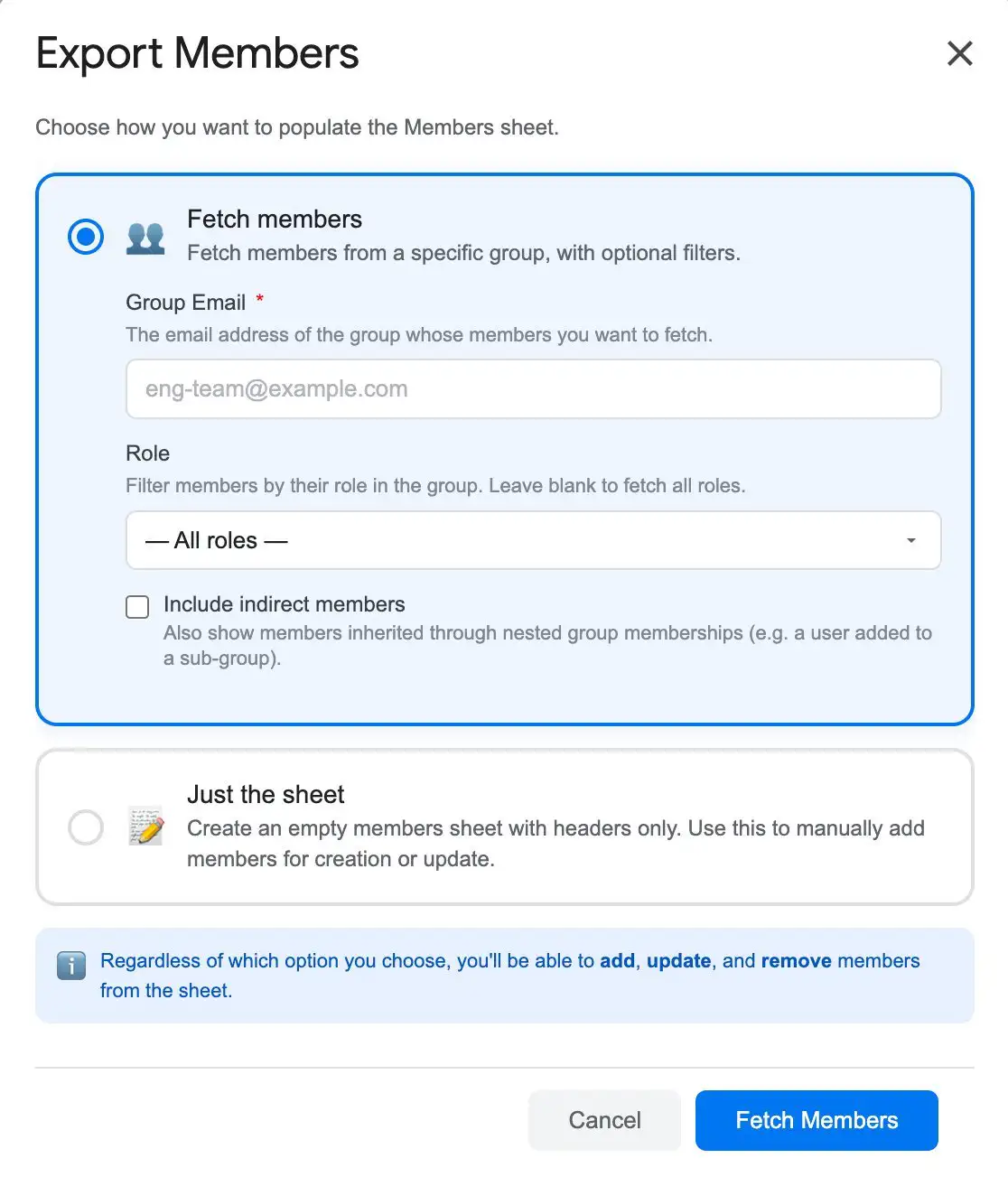
- Go to Extensions → SheetOps → Members.
- Under Option 2: Just the Sheet, click Create Sheet. This generates a clean template with headers, validation dropdowns, and checkboxes.
2. Input Your New Member Information
Add the member data to the sheet:
- Group Email: The email address of the Google Workspace group (required).
- Member Email: The email address of the new member (can be a user, group, or external email, required).
- Role: Select
MEMBER,MANAGER, orOWNERfrom the dropdown.
You can copy and paste multiple rows of member data at once. Edited cells with pending changes will highlight yellow.
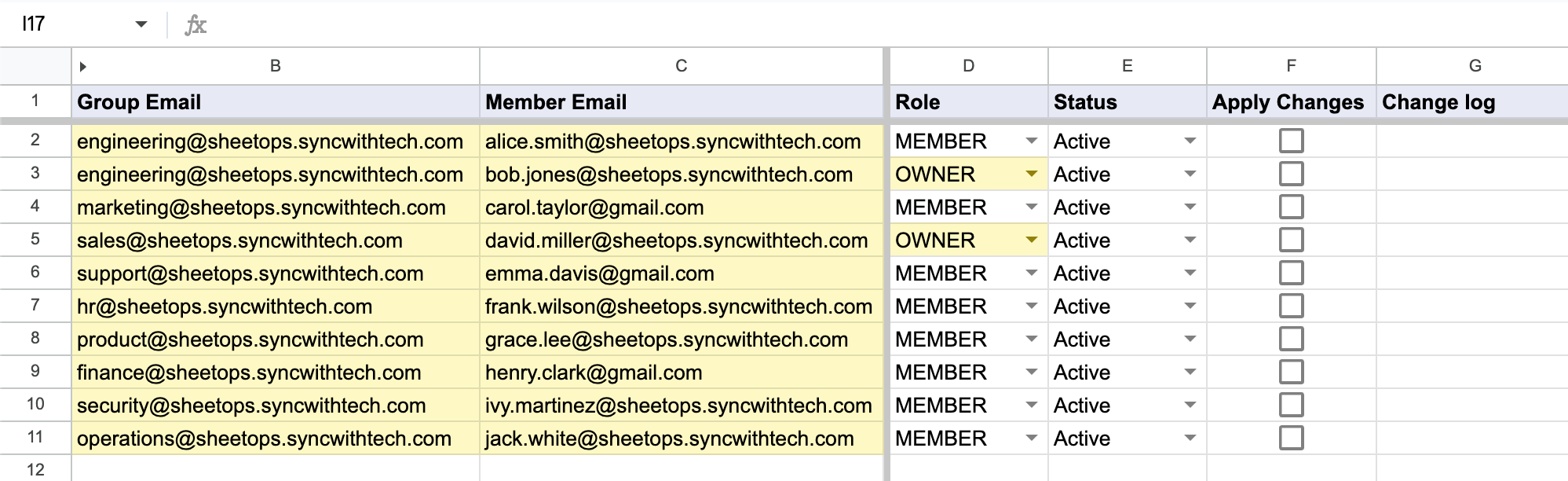
When you enter data, SheetOps automatically applies a yellow background to edited cells. This visual indicator helps you keep track of pending changes before you push them.
3. Mass-Selecting Group Member Rows for Batch Addition
To execute member additions in batch rather than toggling individual rows manually:
- Click the first checkbox cell within the Apply Changes column corresponding to your target member entries.
- Highlight the remaining target group membership rows:
- Cursor Drag: Hold your left mouse button down and drag across the required checkbox cells.
- Shift + Click: Hold Shift on your keyboard while clicking the final member row in your range to highlight every cell between.
- Tap the Spacebar to toggle all highlighted membership checkboxes simultaneously.
4. Authorizing Bulk Group Member Provisioning
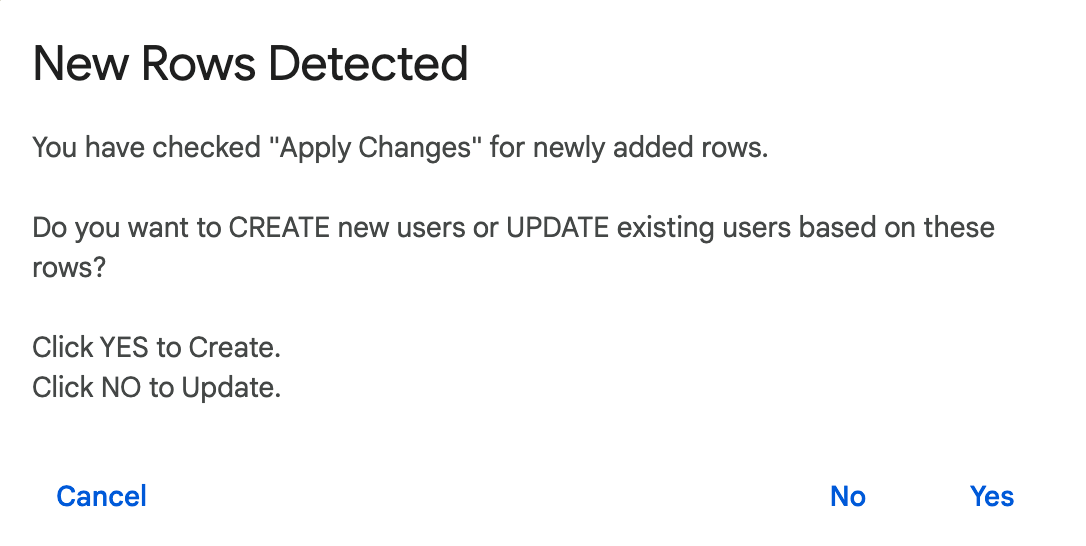
Upon hitting the Spacebar, an interactive prompt will appear asking whether to perform a creation or update operation. Choose Yes (Create) to authorize SheetOps to push the selected user accounts, nested groups, and assigned roles (MEMBER, MANAGER, or OWNER) directly to your Google Workspace mailing lists.
5. Verifying Group Member Add Statuses and Output Logs
As SheetOps provisions each group member in the background:
- Background yellow delta highlights clear automatically line-by-line upon completion.
- The Change log status column records API response feedback:
- ✓ Created (highlighted in soft green) when the user or nested group is successfully added to the target list.
- ✗ error_message (highlighted in soft red) if domain policies block external addresses or invalid permissions occur.
Troubleshooting & Best Practices
- External Members: You can add external email addresses (e.g.,
@gmail.com) to groups if your Google Workspace group settings permit external members. - Timeout Limitations: Google Apps Script execution limits apply (6-minute limit). When adding 1,000+ members, process them in batches of 100-200 rows at a time to prevent timeouts.
Frequently Asked Questions (FAQ)
What is the difference between direct and indirect group members?
A direct member is explicitly added to the group. An indirect member is a user who belongs to a child group that has been nested inside this parent group. You cannot add or manage indirect members directly from the parent group's sheet.
Can I set custom roles when adding members?
No. Google Groups support three roles: MEMBER, MANAGER, and OWNER. You must select one of these predefined roles from the dropdown.
What happens if I choose 'Update' instead of 'Create' for new member rows?
If you select No (Update) for a new row that is not already in the group, the API will return a member not found error. Choose Yes (Create) for additions.
Last updated: June 19, 2026

Ready to manage Workspace at spreadsheet speed?
Install SheetOps from the Google Workspace Marketplace today and start performing bulk directory updates, onboarding, and audits directly inside Google Sheets.