Bulk Suspend Google Workspace Users from Sheets

SheetOps Google Sheets Add-on
This guide is for the official SheetOps add-on. Install it to manage Google Workspace at spreadsheet speed.
Enforcing immediate security access freezes during employee exits or compromised credential events requires instant suspension capabilities. SheetOps provides an automated spreadsheet tool to bulk suspend Google Workspace users from Google Sheets, revoking login access while retaining mailbox and Drive data.
Offboarding Security: Immediate deprovisioning is vital for corporate security. According to industry reports, up to 20% of ex-employees retain access to corporate data due to delayed deprovisioning. As Google's official Security Best Practices state, "deprovisioning of terminated users must be immediate and comprehensive to prevent unauthorized access to corporate resources." SheetOps facilitates this by removing manual administrative delays.
Quick Answer: To bulk suspend Google Workspace users with SheetOps: export your users to a sheet, change their Status to Suspended, select the Apply Changes checkboxes, and execute the update. This immediately revokes login access and terminates active sessions while preserving all user data.
Understanding User Suspension Mechanics
In SheetOps, every user row contains a Status column (status). By modifying this value to Suspended, you instruct SheetOps to make an API update to suspend the user's login access. Under the hood, SheetOps sets the suspended attribute to true in the Google Admin SDK Directory API.
Google Admin Console vs. GAM vs. SheetOps for User Suspension
While you can suspend users manually in the Google Admin Console or write terminal scripts using GAM, SheetOps provides a safer, faster way to manage suspensions at scale:
| Criteria | Admin Console | GAM CLI | SheetOps |
|---|---|---|---|
| Bulk Operations | Manual page-by-page selection or rigid CSV uploads | Scripted command-line commands | Familiar copy-paste and fill-handle drag in spreadsheets |
| Workflow Speed | Slow (requires clicking individual profiles; over 15 minutes for 100 users) | Fast but requires scripting and command assembly | Instant (apply changes to 100+ rows in under 10 seconds) |
| Delta Preview | None (direct API updates) | None (requires dry-run arguments) | Live validation (pending changes highlighted in yellow) |
| Restoration | Manual toggle per user | Requires running another CLI command | Toggle status to 'Active' and press Spacebar |
How to Bulk Suspend Google Workspace Users
1. Prepare Your Spreadsheet Template
To target and update users, you have two options to bring them into the sheet:
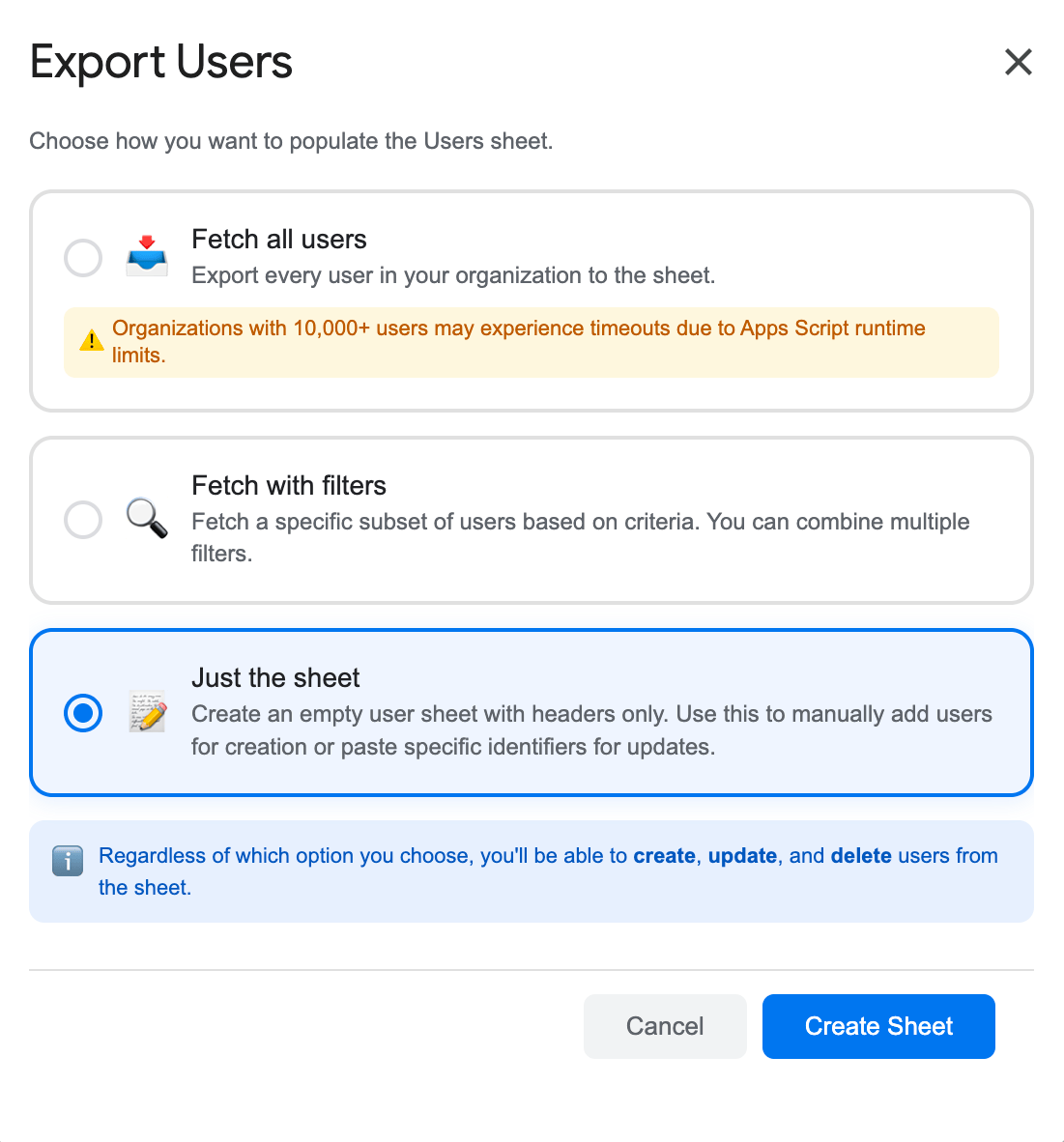
- Fetch with Filters: Go to Extensions → SheetOps → Users, select Fetch with Filters, and choose your target criteria (such as a specific organizational unit) to bring existing users to the sheet. For a detailed guide on how to filter workspace users, refer to the filtering guide. Once imported, you can suspend accounts as needed.
- Just the Sheet: Go to Extensions → SheetOps → Users, select Just the Sheet, and click Create Sheet to generate a clean template. You can then simply input the user email and change their status.
2. Modify Status to Suspended
In the user sheet, locate the Status column (the third-to-last column):
- For the first user you want to suspend, select Suspended from the dropdown menu.
- Bulk Action Tip: Instead of manually selecting the dropdown for every single row, you can select the "Suspended" value on the first row, click and hold the fill handle (the small square in the bottom-right corner of the cell), and drag it down over the other user rows. This instantly copies the Suspended status across all selected rows.
- All cells with pending data or updates will highlight yellow.
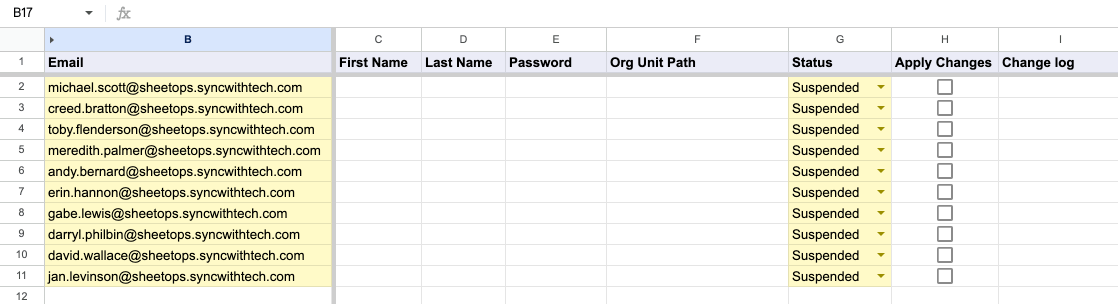
When you enter data or select dropdown choices, SheetOps automatically applies a yellow background to the edited cells. This visual indicator helps you keep track of pending changes before you push them.
3. Selecting Multiple Target User Accounts for Bulk Suspension
To execute batch account suspensions across multiple rows simultaneously:
- Click the first checkbox cell in the Apply Changes column alongside your first suspended user row.
- Select the full range of target user rows:
- Cursor Drag: Press and hold your left mouse button while dragging over the checkbox cells.
- Shift + Click: Hold Shift on your keyboard and click the last user row in your selection list.
- Strike the Spacebar to check all selected user suspension checkboxes at once.
4. Executing Bulk User Account Suspension
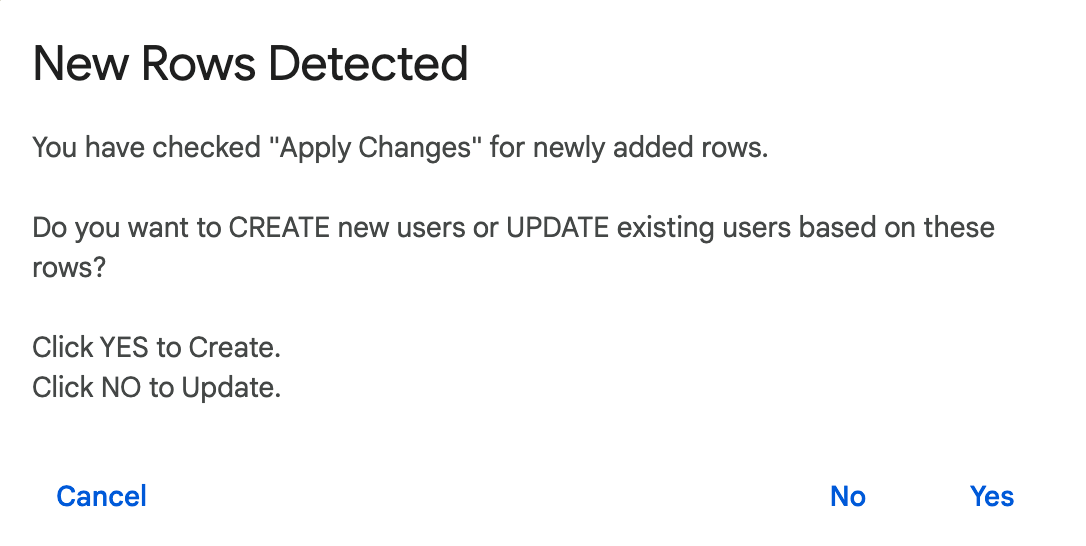
Upon hitting Spacebar, an interactive dialog prompts for update confirmation. Select No (Update) to direct SheetOps to apply the suspended: true flag in Google Directory API, immediately revoking active OAuth sessions, mobile access, and web login tokens.
5. Verifying Account Suspension Statuses and Change Logs
As SheetOps executes user suspensions in the background:
- Pending yellow delta highlights vanish row-by-row upon completion.
- The Change log status column reports immediate execution results:
- ✓ Updated (highlighted in soft green) when the user account status transitions to suspended.
- ✗ error_message (highlighted in soft red) if super-administrator protection locks or permission failures occur.
Video Tutorial
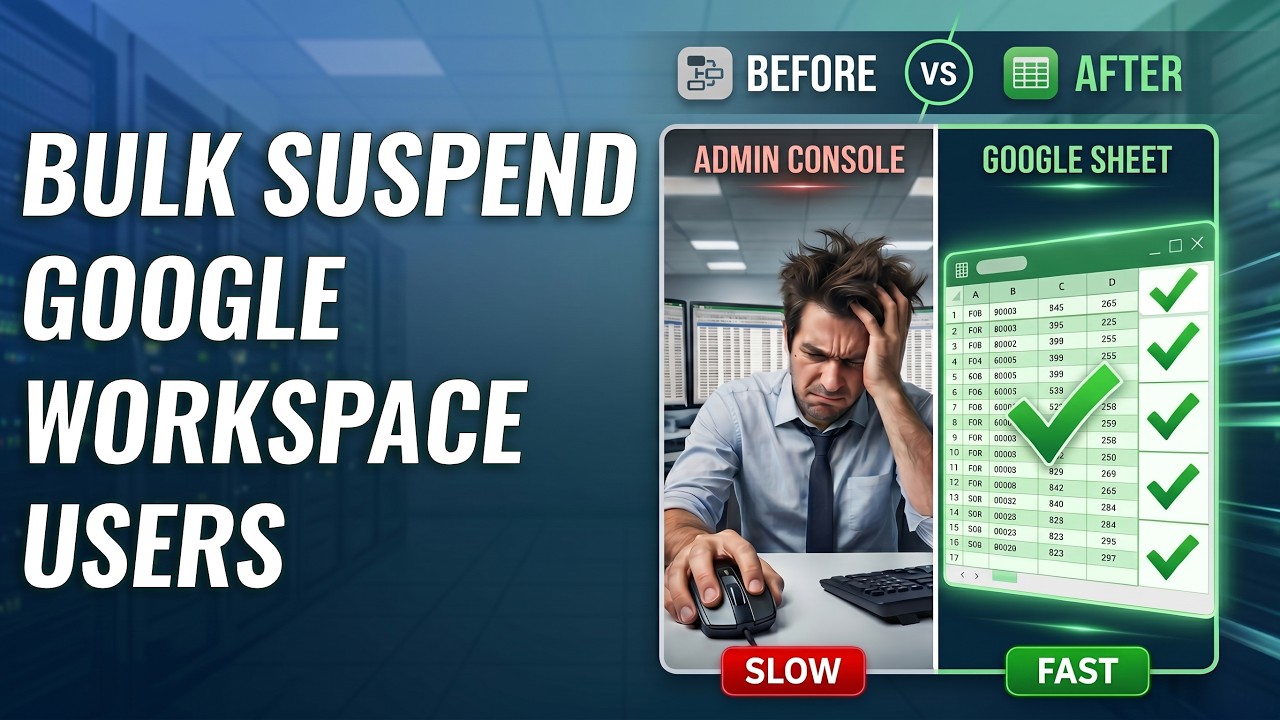
Watch this video guide to see how to bulk suspend and restore users in Google Workspace using SheetOps:
How to Unsuspend or Restore Users
If you need to restore access to a suspended user account, you can perform the exact same update flow but change their status back to active:
- Locate the suspended user row in your sheet (or use Fetch with Filters and set User type to Suspended to load them).
- Change the value in the Status column to Active. You can also use the drag-to-fill handle to restore multiple users in bulk.
- Check the Apply Changes column for those rows (using the multi-select Spacebar trick for bulk operations).
- Click apply, and in the interactive confirmation dialog, select No (Update).
- Once complete, the Change log will display ✓ Updated, and the user's login access will be immediately restored.
Troubleshooting & Best Practices
- License Preservation: Suspended accounts continue to incur subscription license fees unless you archive or delete them. Converting accounts to Google Archive User (AU) licenses typically reduces licensing costs by 75% to 80% (ranging from $1.50 to $7.00 per user/month). If your goal is to save on licensing costs, consider archiving the user or deleting the account. For more details on licensing policies, see the Google Workspace Help Center.
- Immediate Propagation: While policy changes can take up to 24 hours to propagate in Google Workspace, account suspension or restoration is instantaneous. The user's active login sessions are terminated immediately upon suspension.
- Data Retention & Transfer: Suspending a user blocks their login but retains all of their data (Gmail, Google Drive files, Calendar events, etc.) intact. Because they own their data while suspended, you can safely transfer their Drive files to another owner using Google's Data Transfer tool prior to eventual deletion.
- Incoming Mail & Bounces: When an account is suspended, incoming emails sent to that user will bounce back to the sender with a delivery failure notice. Custom Gmail routing or forwarding rules assigned to the account will also cease to execute while suspended.
Frequently Asked Questions (FAQ)
What happens to incoming emails when a user is suspended?
Incoming emails sent to a suspended user account will bounce back to the sender with a delivery failure notice. Messages are not queued, so senders will need to re-send emails after the account is reactivated.
Can I suspend users and free up Google Workspace licenses?
No. Suspended users still occupy an active Google Workspace license. To stop paying for a license, you must either Archive the user (with an Archive User license, which is cheaper) or Delete the account entirely.
How do I suspend only specific users (e.g. by domain)?
You can use standard spreadsheet filters in Google Sheets. Export all users, filter the table by domain or department, select 'Suspended' for those rows in bulk, tick the 'Apply Changes' checkboxes, and click apply.
Last updated: June 18, 2026

Ready to manage Workspace at spreadsheet speed?
Install SheetOps from the Google Workspace Marketplace today and start performing bulk directory updates, onboarding, and audits directly inside Google Sheets.