Bulk Manage Google Workspace Group Email Aliases

SheetOps Google Sheets Add-on
This guide is for the official SheetOps add-on. Install it to manage Google Workspace at spreadsheet speed.
Mapping auxiliary group addresses, department shortcuts, and legacy email aliases to Google Workspace groups via the Admin Console requires entering individual group menus one-by-one. SheetOps automates group alias diff-syncing directly inside Google Sheets, allowing admins to bulk provision and delete group email aliases.
Quick Answer: To bulk manage Google Workspace group email aliases with SheetOps: fetch your groups, add or remove email addresses in the Aliases column (comma-separated), select the Apply Changes checkboxes, and press Spacebar. SheetOps will automatically add new aliases and delete removed ones to match your spreadsheet exactly.
Mailing List Routing Best Practices: Group email aliases are essential for routing functional variations to a centralized group. According to Google's official Google Workspace Administrator guidelines, utilizing group aliases is the recommended way to support multiple inbound addresses for a single mailing list without incurring additional licensing fees.
Understanding Group Email Alias Diff-Syncing
In SheetOps, group email aliases are managed via the Aliases column. SheetOps uses a diff-syncing model to process changes:
- The comma-separated list of email addresses in the Aliases cell represents the desired final state of aliases for that group.
- SheetOps compares this list against the existing configuration in your Google Workspace directory:
- New aliases added to the cell are created via
Groups.Aliases.insert. - Removed aliases are deleted via
Groups.Aliases.remove. - Unchanged aliases are left untouched.
- New aliases added to the cell are created via
Google Admin Console vs. GAM CLI vs. SheetOps
To help you choose the best workflow for your needs, here is a comparison of the primary methods for bulk group email alias updates, including Google's native options and command-line tools like GAM CLI. For administrators seeking an alternative to the GAM CLI, SheetOps replaces command-line operations (such as gam create alias or gam delete alias) with a visual, spreadsheet-based staging environment:
| Feature | Google Admin Console | GAM CLI (e.g., gam add alias) | SheetOps (Spreadsheet) |
|---|---|---|---|
| Workflow | Manual addition/deletion per group profile in Admin Console | Run CLI commands (like `gam create alias`) or loop through CSV scripts | Edit comma-separated lists in Google Sheets and tick checkboxes to sync |
| Skill Curve | Low (basic admin dashboard interface) | High (requires terminal familiarity, API setup, and scripting) | Low (leverages standard spreadsheet edits and mouse actions) |
| Visual Staging | None (updates apply immediately or via blind CSV processing) | None (commands run immediately without a visual review state) | Yellow highlights flag pending changes before committing them |
| Execution Logs | Checked via email reports or Admin Console Tasks dashboard | Standard terminal stdout/stderr logs | Real-time status updates directly in the sheet's Change Log column |
How to Bulk Add and Delete Group Email Aliases
1. Prepare Your Spreadsheet Template
To import your Google Workspace groups into the spreadsheet, go to Extensions → SheetOps → Groups. The add-on will automatically fetch and list all existing groups from your domain.

If the Aliases column is not visible, go to Extensions → SheetOps → Choose display fields, select the Groups tab, check Aliases, and click Save.
2. Input Email Alias Changes
In the group sheet, locate the Aliases column:
- To add aliases: Append the new email addresses to the comma-separated list (e.g.
[email protected], [email protected]). - To remove aliases: Delete the email addresses from the comma-separated list.
- To clear all aliases: Make the cell completely empty.
- Edited cells will automatically highlight yellow.

Whatever email addresses are listed in the Aliases cell will be the exact set of aliases that the group has after applying changes. SheetOps will automatically add any new aliases and remove any deleted ones to match this final list.
When you enter data, SheetOps automatically applies a yellow background to the edited cells. This visual indicator helps you keep track of pending changes before you push them.
3. Selecting Multiple Group Alias Rows for Bulk Updates
To stage alias additions and removals across multiple groups simultaneously:
- Click the first checkbox cell in the Apply Changes column for your primary target group row.
- Select all target group alias update rows:
- Cursor Drag: Hold the left mouse button while dragging over the checkbox cells.
- Shift + Click: Hold Shift on your keyboard and click the last group row in your spreadsheet range.
- Tap Spacebar to toggle all highlighted group alias checkboxes at once.
4. Authorizing Group Email Alias Modifications
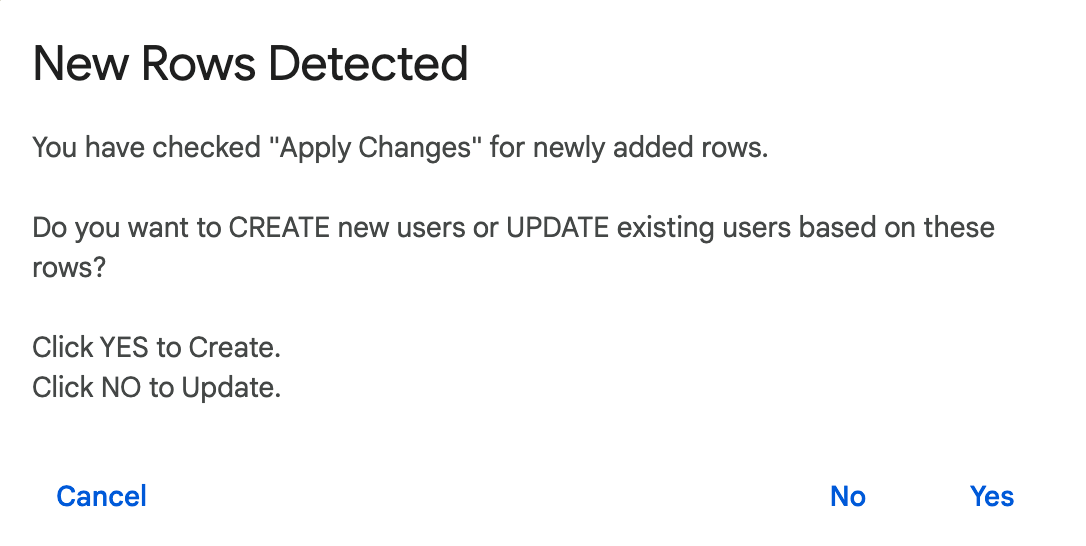
Pressing the Spacebar initiates the group alias diff-sync. For existing fetched groups, updates apply automatically; for newly added group handles, an interactive dialog asks "Do you want to CREATE new groups or UPDATE existing groups?" Select No (Update) to sync aliases to an existing group email address and select Yes if you want to create a new group with the specified email aliases.
5. Verifying Group Alias Creation Status and Real-Time Logs
As group alias API updates process in the background:
- Yellow edited cell indicators clear line-by-line as aliases are assigned or removed.
- The Change log status column outputs real-time API sync results:
- ✓ Updated (highlighted in soft green) when group alias diff-sync completes.
- ✗ error_message (highlighted in soft red) if an alias email address collides with an existing account or domain.
Troubleshooting & Best Practices
- Alias Domain Verification: Any email alias you add must use a domain that is verified and active on your Google Workspace account. For details, refer to Google's guide on adding domain aliases.
- Uniqueness Requirements: An email alias must be unique. It cannot be assigned if it is already in use as a primary email, alias, or Google Group email by another entity in your Google Workspace domain.
Frequently Asked Questions (FAQ)
Can I add a group alias that belongs to a different domain than the group's domain?
Yes! As long as the secondary domain is added and verified in your Google Workspace Admin Console (under Domains), you can create group aliases using that domain, even if the group's primary address is on your primary domain.
Why did my group alias update fail with a 'Conflict' error?
This happens if the email address you are trying to add as an alias is already in use elsewhere in your organization. This includes active users, user aliases, other groups, group aliases, or calendar resources.
What is the difference between a user email alias and a group email alias?
A user email alias routes mail to a single user's mailbox. A group email alias routes mail to the group's email address, which then distributes it to all members of that group.
Last updated: June 18, 2026

Ready to manage Workspace at spreadsheet speed?
Install SheetOps from the Google Workspace Marketplace today and start performing bulk directory updates, onboarding, and audits directly inside Google Sheets.