Manage Multiple Google Workspace Clients from One Sheet

SheetOps Google Sheets Add-on
This guide is for the official SheetOps add-on. Install it to manage Google Workspace at spreadsheet speed.
Managed service providers, Google Workspace resellers, and IT consultants rarely administer a single domain. They juggle client organizations — each with its own users, organizational units, device fleet, and license inventory — while the Google Admin Console only ever shows one domain at a time.
Multi-tenant management in SheetOps changes that. By connecting a single Partner Service Account with domain-wide delegation (DWD), you register each client Google Workspace domain once and then export, create, update, or delete directory records across all of them from one spreadsheet — with the same visual change tracking you already use on your own domain.
Multi-tenant management is optional. Your own organization keeps working exactly as before through the native Admin Directory and License Manager APIs.
What Is Multi-Tenant Management in SheetOps?
Every client you manage is a separate Google Workspace tenant with its own directory, devices, and billing. By default, SheetOps operates on the domain of the administrator running the add-on. With multi-tenant settings enabled, SheetOps can also act on your registered client domains.
Once configured, every entity workflow works across client domains:
- Users: create, update, suspend, archive, and delete users; change passwords and manage email aliases.
- Groups and members: create groups, update memberships, and assign roles (
OWNER,MANAGER,MEMBER). - Organizational units: create, rename, move, and delete OUs in any client domain.
- Chrome OS devices: move devices between OUs, change status, deprovision, and issue remote commands.
- User licenses: assign, remove, and reassign Google Workspace, Cloud Identity, and Chrome Enterprise SKUs.
A single sheet can even contain rows belonging to different client domains. SheetOps resolves the target domain for every row when you tick Apply Changes and routes each operation to the correct tenant.
How Multi-Tenant Authentication Works
SheetOps multi-tenant mode is built on one Partner Service Account that you create in your own Google Cloud project:
- One service account for all clients. You authorize it once in each client's Google Admin Console using domain-wide delegation, with the exact OAuth scopes SheetOps needs — nothing more.
- Impersonation instead of shared passwords. For each API call, SheetOps mints a short-lived OAuth token that impersonates the client admin email you configured for that tenant. Tokens are cached per domain (up to 55 minutes) so bulk operations stay fast.
- Direct to Google APIs. Client tenant operations run from the spreadsheet's Apps Script runtime straight to Google's Admin Directory and License Manager REST APIs. Nothing is proxied through a third-party server.
The five scopes you authorize in each client domain:
https://www.googleapis.com/auth/admin.directory.userhttps://www.googleapis.com/auth/admin.directory.grouphttps://www.googleapis.com/auth/admin.directory.orgunithttps://www.googleapis.com/auth/admin.directory.device.chromeoshttps://www.googleapis.com/auth/apps.licensing
Only a super administrator of the client domain can authorize domain-wide delegation. Keep your Service Account JSON key private — the OAuth2 Client ID, on the other hand, is designed to be shared with clients. Learn more in Google's domain-wide delegation guide and the service account documentation.
Prerequisites
- A Google Cloud project you control (creating a service account and issuing a JSON key requires Google Cloud access).
- A Google account with edit access to the target spreadsheet, signed in to SheetOps.
- For each client domain: a super administrator who can authorize your Client ID, plus the email of the admin account SheetOps should impersonate.
You can manage your own organization and client tenants side by side. Your domain always appears in every export dialog as Current Organization, and client domains appear below it.
Setting Up Multi-Tenant Access
1. Create a Partner Service Account in Google Cloud
- Open the Google Cloud Console and create (or select) a dedicated project for client management.
- Go to IAM & Admin → Service Accounts → Create service account, and give it a recognizable name such as "SheetOps Partner".
- Open the new service account, expand Advanced settings, and enable Domain-wide delegation. This is what allows client super admins to delegate directory access to it.
- Go to the Keys tab → Add key → Create new key → JSON, and download the key file.
- Copy the service account's numeric Client ID — each client needs it in step 3 below.
2. Upload the Service Account Key in SheetOps
- In your spreadsheet, open Extensions → SheetOps → Multi-Tenant Settings.
- On the Partner Settings tab, upload the JSON key file or paste its contents into the text box.
- Click Save Service Account. SheetOps validates the key and stores it privately in your own Google account.
- Use Copy Client ID to grab the OAuth2 Client ID for your clients, and Copy Scopes to Clipboard to copy the exact scope list they must authorize.
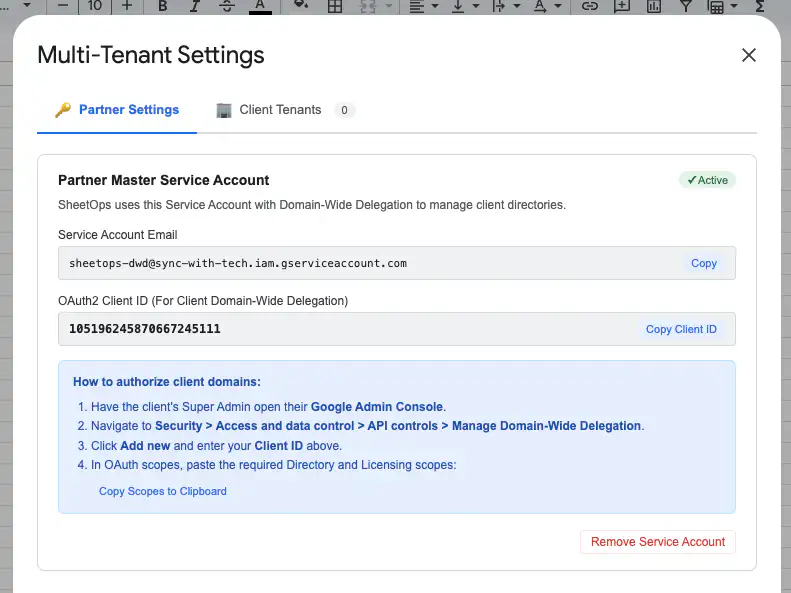
3. Authorize the Client ID in Each Client's Admin Console
Ask each client's super administrator to complete this one-time step:
- Sign in to the Google Admin Console with a super admin account.
- Go to Security → Access and data control → API controls.
- Under Domain-wide delegation, click Manage Domain Wide Delegation, then Add new.
- Paste your Client ID and the comma-separated OAuth scopes.
- Click Authorize.
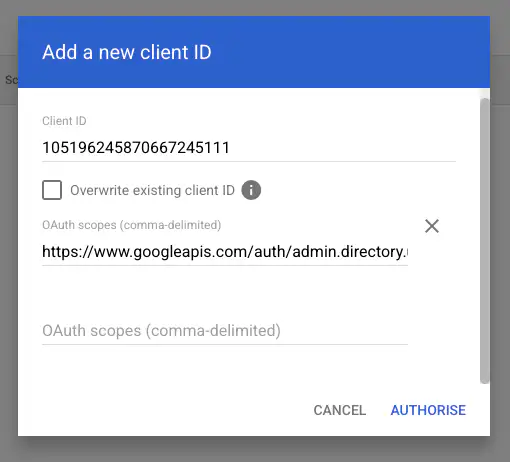
This authorization is per domain. If it is ever removed, exports and applied changes for that client stop until the Client ID is authorized again.
4. Add Client Tenants and Test the Connection
- In SheetOps, switch to the Client Tenants tab in Multi-Tenant Settings.
- Fill in the add-client form with the Company / Client Name (the label shown in export dialogs), the Client Domain, the Super Admin Email to Impersonate (for example,
[email protected]), and optional notes. - Click Save Client. The tenant is added to the Configured Clients table.
- Click Test next to the client — or Test Connection in the form — and look for: "Successfully connected to 'acme.com'! Domain-Wide Delegation is active and working."
Use Edit and Delete on any row to maintain your client list. Removing a tenant stops access to that domain until it is added back.
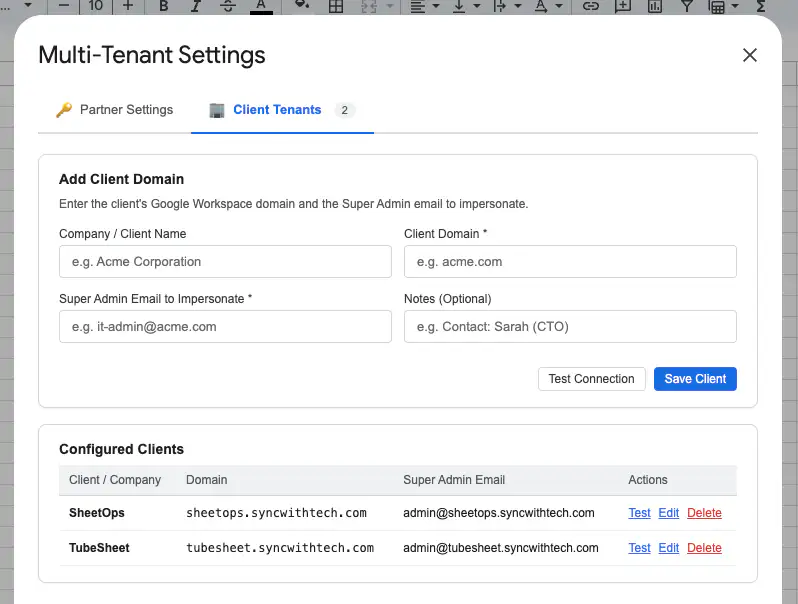
If the test reports "Domain-Wide Delegation not authorized for Client ID", ask the super admin to re-check the Client ID and scopes in the delegation list. An API authorization check failed (403) message usually means the impersonated account does not have admin privileges in that domain.
5. Export and Manage Client Domains
- Open any entity dialog — Users, Groups, Org Units, Members, Chrome OS Devices, or Licenses.
- In the Organization Domain dropdown, pick the client you want to work with. Entries appear as
<Client name> (<domain>), with your own domain listed as Current Organization. - Choose an export mode (fetch all, fetch with filters, or just the sheet) and pull records as usual.
- Edit cells, tick Apply Changes, and each row is written to the domain it belongs to. The Change log column reports the result per row, exactly like single-domain operations. See the Exporting & Filtering guide for the full workflow.
Working Across Domains in One Sheet
Because a spreadsheet can hold multiple domains at once, SheetOps resolves the target domain for every row:
- Users — resolved from
primaryEmail. - Groups — resolved from
email. - Members — resolved from
groupEmail. - User licenses — resolved from the user email (
userId). - Org units and Chrome OS devices — resolved from the
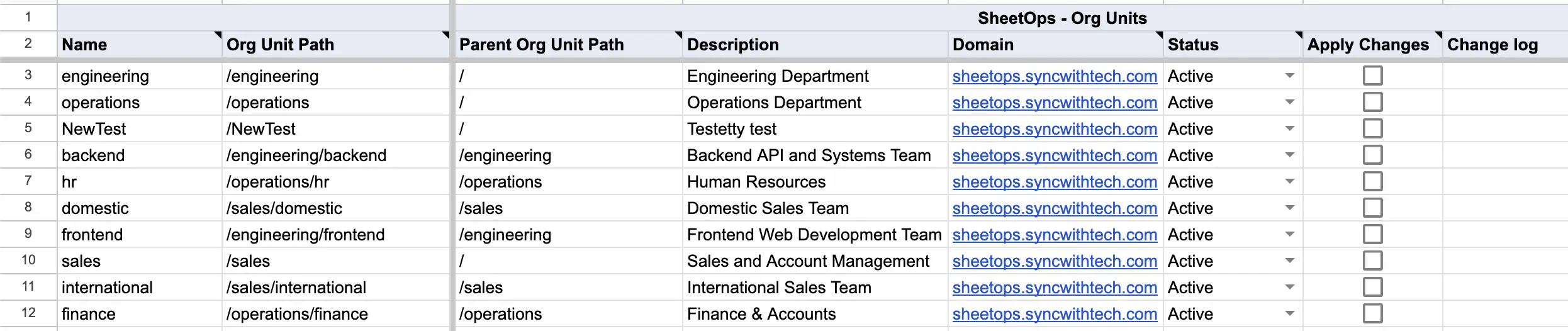
Domaincolumn.
When a Partner Service Account is configured, SheetOps automatically adds a Domain column to Org Units and Chrome OS device sheets — including sheets that already exist, which are updated without losing unapplied edits. New items you create with an empty Domain cell go to your own organization; set the cell to a client domain to create the item there. Bulk device operations, such as OU moves and status changes, are automatically grouped per domain before they are executed.
Multi-Tenant vs. Single-Domain Administration
| Capability | Google Admin Console | GAM (CLI) | SheetOps Multi-Tenant |
|---|---|---|---|
| Client onboarding | Log in to each domain's console separately | Per-domain service account setup in config files | Authorize one shared Client ID per domain |
| Interface | A browser session per domain | Terminal with per-domain scripts | A single Google Sheet |
| Cross-domain work | Not available — one domain at a time | Separate command runs per domain | One sheet with per-row domain routing |
| Change review | Click-through confirmations | Command output logs | Visual diffs with Apply Changes checkboxes |
Security and Best Practices
- Grant least privilege. Authorize only the five scopes listed above in each client domain — they cover the Admin Directory and License Manager APIs that SheetOps uses.
- Keep the key file private. The Service Account JSON key is stored in your Google account's private user properties. Share only the Client ID with clients.
- Create the account in a dedicated project. Use a project you control, rotate keys periodically, and remove old service account keys after rotation.
- Offboard cleanly. When a client relationship ends, delete the tenant in Client Tenants and ask the client to remove your Client ID from their domain-wide delegation list — revoking access at the source.
- The trigger-user safeguard still applies. Only the administrator who set up the spreadsheet's trigger can apply changes, including changes routed to client domains.
Frequently Asked Questions (FAQ)
Can I manage multiple Google Workspace domains from one spreadsheet?
Yes. Add each client domain in Multi-Tenant Settings, and every SheetOps dialog gains an Organization Domain selector so you can export and manage users, groups, members, OUs, devices, and licenses for any registered client — without signing out or switching browser profiles.
What is domain-wide delegation, and why does SheetOps use it?
Domain-wide delegation lets a Google Cloud service account impersonate users in a Workspace domain, with access limited to the OAuth scopes a super admin authorizes. SheetOps uses it so that one approved service account can call the Admin Directory API for each client domain — no shared admin passwords, no per-user consent prompts. Google documents the mechanism in Control API access with domain-wide delegation.
Do I need super admin access in every client domain?
Not for day-to-day work. After the client's super admin authorizes your Client ID once, SheetOps impersonates the admin email you configured for that tenant. The client's super admin is only needed for that initial authorization — and to revoke it if you stop managing the domain.
Can one sheet contain rows from different client domains?
Yes. Users, groups, members, and license rows carry their domain in the identifier email; org units and Chrome OS devices use the Domain column. When you apply changes, SheetOps routes each row to its own domain, so a single batch can span several clients.
Why does the connection test fail with "Domain-Wide Delegation not authorized for Client ID"?
Usually the client domain does not yet have your Client ID authorized, or the scopes were saved incorrectly. Ask the super admin to open Manage Domain Wide Delegation and compare the entry with the Client ID and scopes copied from SheetOps. If the test instead reports API authorization check failed (403), the impersonated account likely lacks admin privileges in that domain.
What happens if I remove the Partner Service Account?
Multi-tenant access is disabled until a service account is configured again — client exports and applied changes stop, while native single-domain operations continue normally. Your existing sheets and their data are untouched.
Is client directory data stored or proxied through a third-party server?
No. SheetOps runs inside Google Apps Script: access tokens and directory data flow directly between the spreadsheet and Google's official APIs. No client directory data is stored or proxied on third-party servers, and the Service Account key stays in your own Google account.
Related Guides
- Exporting & Filtering Guide
- Bulk Create Google Workspace Users
- Bulk Assign Google Workspace Licenses
Last updated: September 29, 2026

Ready to manage Workspace at spreadsheet speed?
Install SheetOps from the Google Workspace Marketplace today and start performing bulk directory updates, onboarding, and audits directly inside Google Sheets.