Bulk Create Google Workspace Groups from Sheets

SheetOps Google Sheets Add-on
This guide is for the official SheetOps add-on. Install it to manage Google Workspace at spreadsheet speed.
Setting up departments, team mailing lists, and collaborative group addresses in the Google Admin Console involves multi-click form entries for each address. SheetOps accelerates Google Workspace group creation by allowing system administrators to bulk import and provision hundreds of new group email addresses and settings directly from Google Sheets.
Workspace Organization & Security: Efficient group administration is vital for team collaboration and access management. As Google's official Group Administration Best Practices state, "using groups to manage access to resources simplifies permissions management and ensures that users have consistent access to the shared files, calendars, and sites they need." SheetOps accelerates this process by eliminating the need to click through individual admin console forms.
Quick Answer: To bulk create Google Workspace groups with SheetOps: load the groups sheet under Extensions → SheetOps → Groups, enter the new group emails and details in new rows, select the Apply Changes checkboxes, and confirm the creation in the interactive dialog. SheetOps provisions the groups sequentially and displays results in real-time.
Understanding Bulk Group Creation in Google Workspace
SheetOps utilizes the Google Admin Directory API to insert new group records. You populate a sheet with your new group details, select the Apply Changes option, and SheetOps executes the creations sequentially in the background, writing the results back to your sheet in real time.
Google Admin Console vs. GAM vs. SheetOps for Group Creation
While you can create groups manually in the Google Admin Console or write terminal scripts using GAM, SheetOps provides a safer, faster way to manage creations at scale:
| Criteria | Admin Console | GAM CLI | SheetOps |
|---|---|---|---|
| Interface | Manual form inputs | Command Line | Google Sheets |
| Validation | Post-submit errors | None (scripting required) | Live Delta-Validation (Yellow Highlight) |
| Safety Net | None | High risk of batch errors | Confirmation dialog + Visual preview |
| Setup Time | Immediate (slow) | High (local installs) | Immediate (browser-based) |
Step-by-Step Guide to Bulk Creating Groups
1. Prepare Your Spreadsheet
Go to Extensions → SheetOps → Groups. Selecting this automatically fetches and loads all existing Google Workspace groups in your domain onto the spreadsheet, setting up the required columns, validation rules, and checkboxes.

2. Input Your New Group Information
To create new groups, add your data in new rows below any existing fetched groups in the spreadsheet.
- Email (Required, Primary Identifier): The new group's email address (e.g.,
[email protected]). This is the only required field. - Name (Optional): The display name for the group (e.g.,
Marketing Team). - Description (Optional): A short description of the group's purpose.
- Aliases (Optional): Comma-separated list of email aliases to assign to the group (e.g.,
[email protected], [email protected]).
All other fields besides Group Email are entirely optional. You can copy and paste multiple rows of group data at once. All cells with pending data will be highlighted in yellow, waiting to be created.

When you enter data, SheetOps automatically applies a yellow background to the edited cells. This visual indicator helps you keep track of pending changes before you push them.
3. Selecting Multiple Group Configuration Rows Instantly
To mark all your newly defined group records for batch API execution:
- Click the first checkbox cell in the Apply Changes column corresponding to your target new group row.
- Select the full range of group entries:
- Mouse Drag: Click and hold while dragging down over the target checkbox cells.
- Shift + Click: Hold Shift on your keyboard and click the last group row in your spreadsheet table.
- Press Spacebar to toggle all selected checkboxes to checked at once.
4. Authorizing New Google Workspace Group Creation
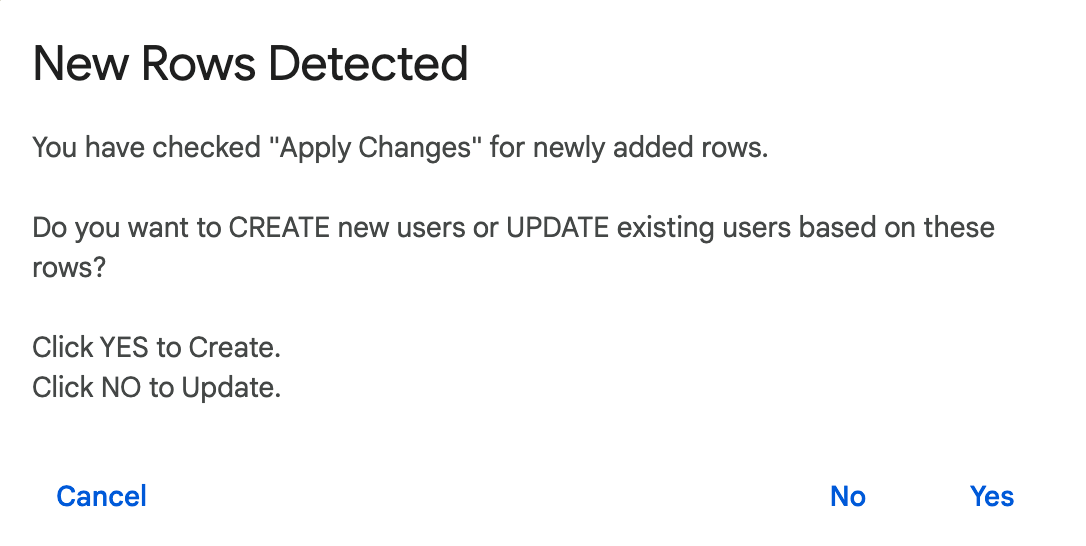
When the confirmation modal pops up after hitting Spacebar, click Yes (Create) to authorize SheetOps. The add-on connects to the Directory API Groups resource to register new group email addresses, display names, descriptions, and optional initial aliases.
5. Monitoring Live Group Creation IDs and API Log Summary
As group creation calls execute in sequence:
- Pending yellow cell highlights clear automatically upon API completion.
- The Change log column records live status results:
- ✓ Created (highlighted in soft green) accompanied by Google's assigned unique internal Group ID upon successful creation.
- ✗ error_message (highlighted in soft red) if duplicate group addresses or domain validation errors occur.
Troubleshooting & Best Practices
- API Mechanics: SheetOps utilizes the
insertmethod of the Google Admin SDK Directory API Groups resource to provision new groups. The account running the add-on must have super administrator privileges or a delegated admin role with group write access. - Domain Validation: The email domain for the group and any aliases must match one of the verified domains or subdomains in your Google Workspace account. Attempting to create a group on an unverified domain will cause the API to return a validation error.
- Group Settings Inheritance: By default, newly created groups inherit the default sharing settings of your domain. You can modify group access settings, post permissions, and member visibility in the Admin Console or Google Groups dashboard.
- Timeout Limitations: Google Apps Script limits executions to a strict 6-minute window. While SheetOps processes operations efficiently in the background, processing 500+ groups at once can hit timeout thresholds. We recommend running creations in batches of 100 to 200 rows at a time for optimal performance.
Frequently Asked Questions (FAQ)
Can I assign group aliases during bulk creation?
Yes! You can fill out the Aliases column with a comma-separated list of email addresses. SheetOps will automatically create the group and assign those aliases in the same run.
What happens if the group email already exists?
If you select Yes (Create) but the group email already exists in your Google Workspace domain, the Google Directory API will return a conflict error and the row will log a failure in the Change log.
How do I configure member posting policies for new groups in bulk?
SheetOps focuses on provisioning groups and membership. Advanced group permissions (such as custom roles, posting policies, or web visibility) must be configured in the Google Admin Console under Group settings or via Google Groups for Business.
Last updated: June 19, 2026

Ready to manage Workspace at spreadsheet speed?
Install SheetOps from the Google Workspace Marketplace today and start performing bulk directory updates, onboarding, and audits directly inside Google Sheets.