Bulk Create Google Workspace Org Units

SheetOps Google Sheets Add-on
This guide is for the official SheetOps add-on. Install it to manage Google Workspace at spreadsheet speed.
Designing organizational unit (OU) trees and sub-folders in the Google Admin Console requires navigating complex nested menus for every single path. SheetOps simplifies Google Workspace directory restructuring by enabling IT managers to bulk provision OU hierarchies directly from Google Sheets.
Workspace Architecture & Policy Enforcement: Organizational Units are hierarchical containers used to control settings, apps, and policies for your users. As Google's official best practices state, "Organizational units let you apply settings to a group of users or devices." SheetOps accelerates this process by letting you define and build your entire OU tree structure straight from your spreadsheet.
Quick Answer: To bulk create Google Workspace Organizational Units with SheetOps: Go to Extensions → SheetOps → Org Units, enter the new OU paths and details in new rows, select the Apply Changes checkboxes, and confirm the creation by clicking Yes (Create) in the interactive dialog.
Understanding Bulk OU Creation in Google Workspace
SheetOps utilizes the Google Admin Directory API to insert new organizational unit records. You populate the sheet with your new OU details, select the Apply Changes option, and SheetOps executes the creations sequentially in the background, writing the results back to your sheet in real time.
Google Admin Console vs. GAM vs. SheetOps for OU Creation
While you can create OUs manually in the Google Admin Console or write terminal scripts using GAM, SheetOps provides a safer, faster way to manage creations at scale:
| Criteria | Admin Console | GAM CLI | SheetOps |
|---|---|---|---|
| Interface | Manual form inputs | Command Line | Google Sheets |
| Validation | Post-submit errors | None (scripting required) | Live Delta-Validation (Yellow Highlight) |
| Safety Net | None | High risk of batch errors | Confirmation dialog + Visual preview |
| Setup Time | Immediate (slow) | High (local installs) | Immediate (browser-based) |
Step-by-Step Guide to Bulk Creating OUs
1. Prepare Your Spreadsheet
Go to Extensions → SheetOps → Org Units. Selecting this automatically fetches and loads your existing Google Workspace OU hierarchy onto the spreadsheet, setting up the required columns, validation rules, and checkboxes.

2. Input Your New Organizational Unit Information
To create new OUs, add your data in new rows below the existing fetched units in the spreadsheet:
- Name (Required): The display name for the organizational unit (e.g.,
East Coast Sales). - Parent Path (Required): The path of the parent OU (e.g.,
/Salesor/). - Org Unit Path (Optional): The full hierarchical path of the new OU. Note: It is highly recommended to leave this empty when creating new OUs. SheetOps will automatically generate the correct Org Unit Path based on the Name and Parent Path you specify (e.g.,
/Sales/East Coast Sales). - Description (Optional): A short description of the organizational unit's purpose.
All cells with pending data will highlight yellow, waiting to be created.
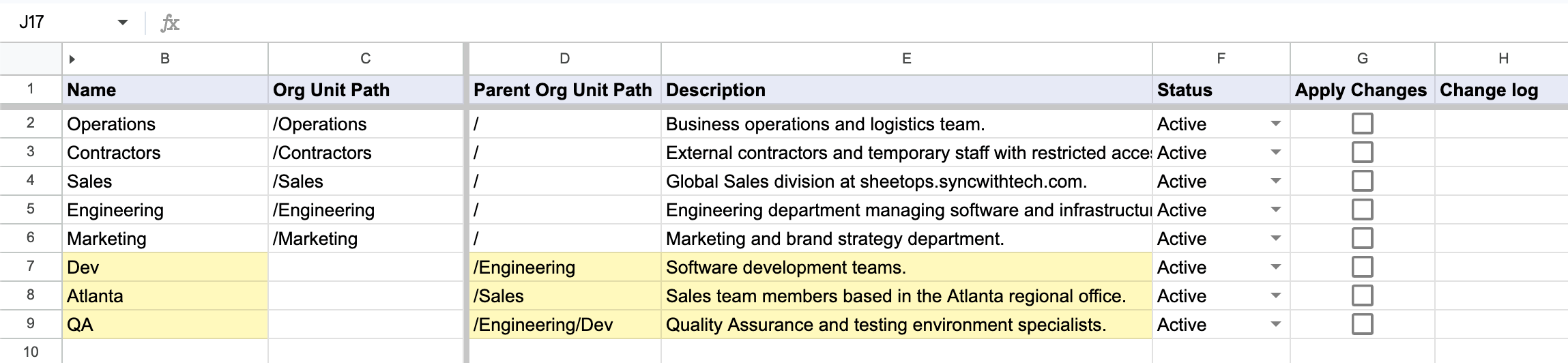
When you enter data, SheetOps automatically applies a yellow background to the edited cells. This visual indicator helps you keep track of pending changes before you push them.
3. Mass-Selecting Organizational Unit Rows for Creation
To execute OU hierarchy creation across all newly entered paths:
- Click the first checkbox cell in the Apply Changes column corresponding to your target OU definition.
- Select the full set of nested sub-folder rows:
- Cursor Drag: Hold the left mouse button and drag across all target OU checkboxes.
- Shift + Click: Hold Shift on your keyboard while selecting the bottom OU row in your sheet.
- Press Spacebar to toggle all selected OU creation checkboxes at once.
4. Executing Sequential Organizational Unit Hierarchy Creation
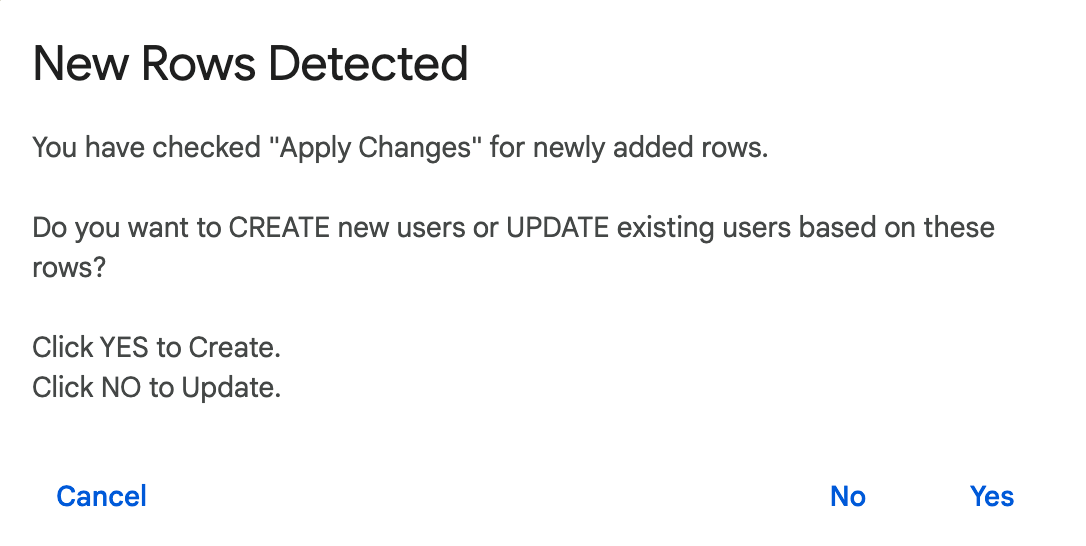
Upon pressing Spacebar, an interactive window will ask whether to create or update records. Select Yes (Create) to trigger sequential API execution. Parent organizational units (e.g., /Engineering) are resolved top-to-bottom before creating nested sub-units (e.g., /Engineering/DevOps).
5. Verifying OU Path Hierarchy Logs and Execution Results
As SheetOps provisions the organizational units in your domain:
- Pending yellow highlights fade line-by-line as each OU node is registered.
- The Change log column displays real-time execution feedback:
- ✓ Created (highlighted in soft green) along with the new internal Google OrgUnit ID upon success.
- ✗ error_message (highlighted in soft red) if a parent path does not exist or invalid path formatting is used.
Troubleshooting & Best Practices
- API Mechanics: SheetOps utilizes the
insertmethod of the Google Admin SDK Directory API Orgunits resource to provision new organizational units. The account running the add-on must have super administrator privileges or a delegated admin role with write access for organizational units. - Sequential Creation: Google requires parent OUs to exist before creating child OUs. When creating nested paths (e.g.
/Salesand/Sales/Eastin the same batch), ensure the parent OU row is placed above the child OU row. SheetOps processes rows from top to bottom, ensuring the parent is created first. - Invalid Paths: All paths must begin with a forward slash
/. Do not include trailing slashes (e.g./Sales/is invalid; use/Sales). - Timeout Limitations: Google Apps Script execution limits apply (6-minute limit). We recommend running creations in batches of 100 to 200 rows at a time for optimal performance.
Frequently Asked Questions (FAQ)
What is the difference between Google Workspace Groups and Organizational Units?
Organizational Units (OUs) are policy-driven containers where you define service access, security settings, and app configurations for users (who can only belong to one OU). Groups are communication-driven lists (like mailing lists) where you assign resource access or send emails to users (who can belong to multiple groups).
Can I create nested Organizational Units in a single run?
Yes. You can create multiple levels of nested OUs in a single run by listing the parent OU in a row above the child OU. SheetOps will process and create the parent first, making it available when it reaches the child row.
What happens if the Org Unit Path already exists?
If you select Yes (Create) but the path already exists in your Google Workspace domain, the Directory API will return a conflict error, and the row will log a failure in the Change log.
Last updated: June 19, 2026

Ready to manage Workspace at spreadsheet speed?
Install SheetOps from the Google Workspace Marketplace today and start performing bulk directory updates, onboarding, and audits directly inside Google Sheets.