Bulk Move Google Workspace Users to Org Units

SheetOps Google Sheets Add-on
This guide is for the official SheetOps add-on. Install it to manage Google Workspace at spreadsheet speed.
Reassigning employees across departmental branches or moving users to specialized security sub-OUs in the Google Admin Console requires navigating through individual user settings panels. SheetOps simplifies Google Workspace organizational unit transfers by allowing administrators to reassign user OU paths in bulk directly inside Google Sheets.
Understanding User-to-OU Assignment Mechanics
In SheetOps, every user row contains an Org Unit Path column (orgUnitPath). By modifying this path, you will eventually instruct SheetOps to make an API update moving the user to the specified Organizational Unit.
Google Admin Console vs. GAM CLI vs. SheetOps
To help you choose the best workflow for your needs, here is a comparison of the primary methods for bulk OU updates:
| Feature | Google Admin Console | GAM CLI | SheetOps (Spreadsheet) |
|---|---|---|---|
| Workflow | Manual user-by-user clicks or multi-step CSV file uploads | Write command-line syntax or build batch scripts for execution | Edit cells directly in Google Sheets and tick checkboxes to apply |
| Skill Curve | Low (basic admin dashboard interface) | High (requires terminal familiarity, API setup, and scripting) | Low (leverages standard spreadsheet edits and mouse actions) |
| Visual Staging | None (updates apply immediately or via blind CSV processing) | None (commands run immediately without a visual review state) | Yellow highlights flag pending changes before committing them |
| Execution Logs | Checked via email reports or Admin Console Tasks dashboard | Standard terminal stdout/stderr logs | Real-time status updates directly in the sheet's Change Log column |
How to Bulk Assign Users to Organizational Units
1. Prepare Your Spreadsheet Template
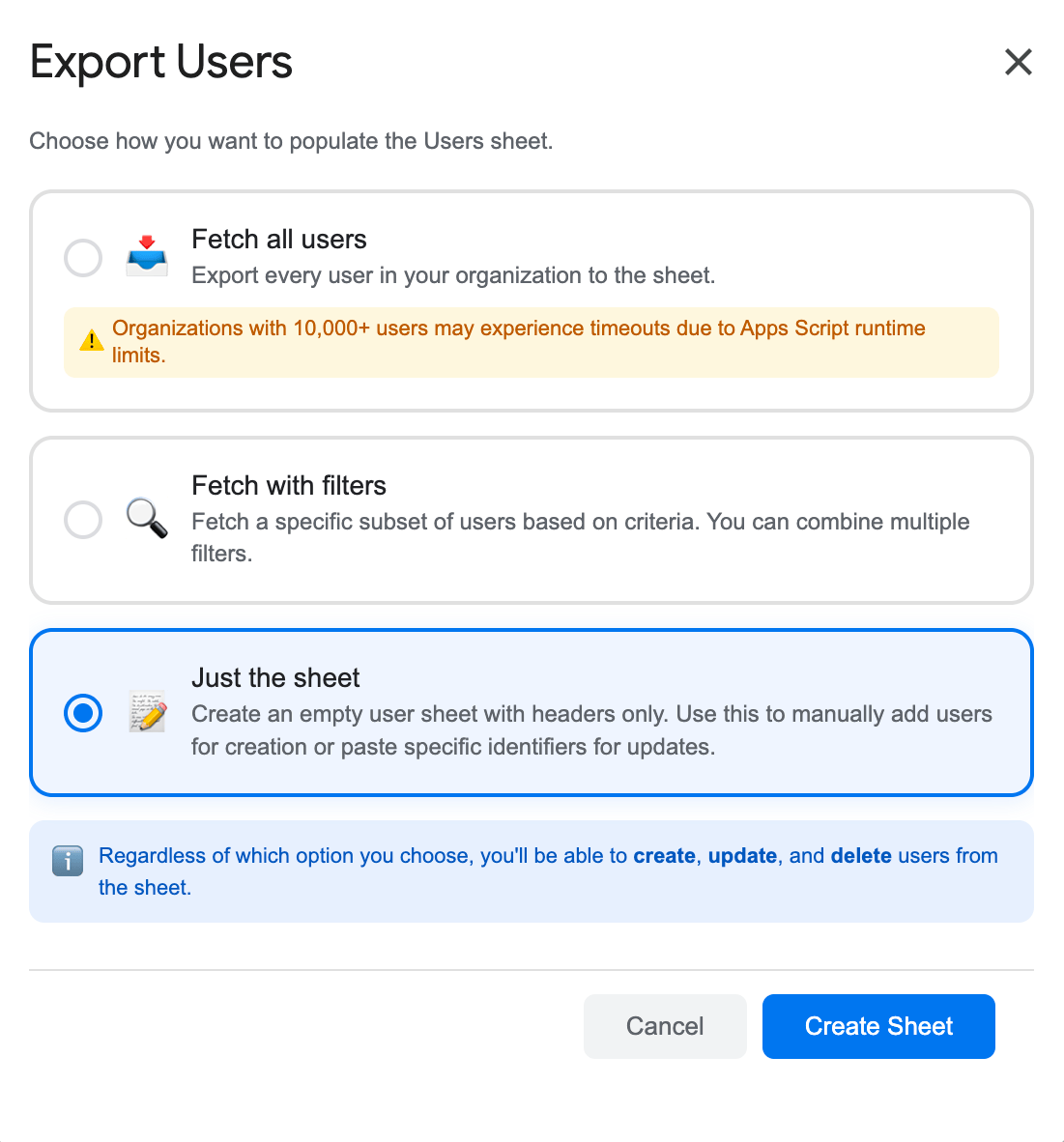
To target and update users, you have two options to bring them into the sheet:
- Fetch with Filters: Go to Extensions → SheetOps → Users, select Fetch with Filters, and choose your target criteria (such as a specific organizational unit) to bring existing users to the sheet. For a detailed guide on how to filter workspace users, refer to the filtering guide. Once imported, you can assign/reassign organizational units for them.
- Just the Sheet: Go to Extensions → SheetOps → Users, select Just the Sheet, and click Create Sheet to generate a clean template. You can then simply input the user email and organization unit before checking the Apply Changes checkbox.
2. Input Organizational Unit Changes
In the user sheet, locate the Org Unit Path column:
- Input or change the cell values to the target OU paths. For example, to move a user to the Design team under Marketing, enter
/Marketing/Design. - Double-check that you use the exact path syntax, starting with a forward slash (
/). - All cells with pending data or updates will highlight yellow.
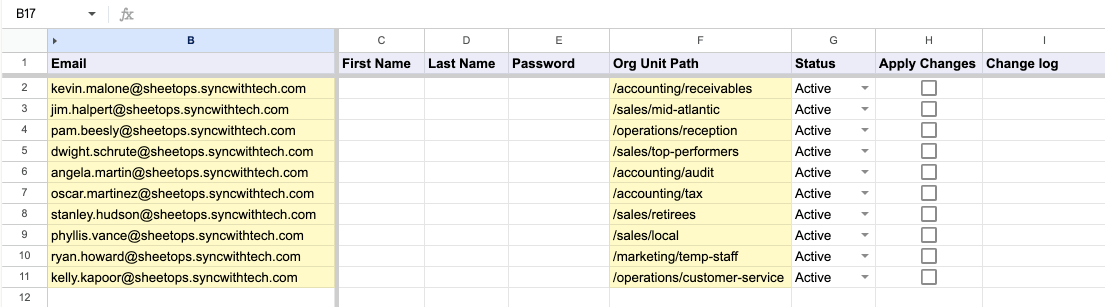
When you enter data, SheetOps automatically applies a yellow background to the edited cells. This visual indicator helps you keep track of pending changes before you push them.
The target Organizational Unit must already exist in your Google Workspace directory before moving users into it. If you need to create a new OU first, refer to the Bulk Create Organizational Units documentation.
3. Selecting Multiple User Accounts for Organizational Unit Transfer
To execute OU reassignments for multiple users at once:
- Click the first checkbox cell in the Apply Changes column corresponding to your target user relocation entry.
- Select all target user rows requiring OU transfer:
- Click and Drag: Hold the left mouse button down while dragging across the required checkbox cells.
- Shift + Click: Hold Shift on your keyboard and click the final user row in your selection list.
- Tap Spacebar to toggle all selected OU reassignment checkboxes simultaneously.
4. Confirming User Organizational Unit Relocation
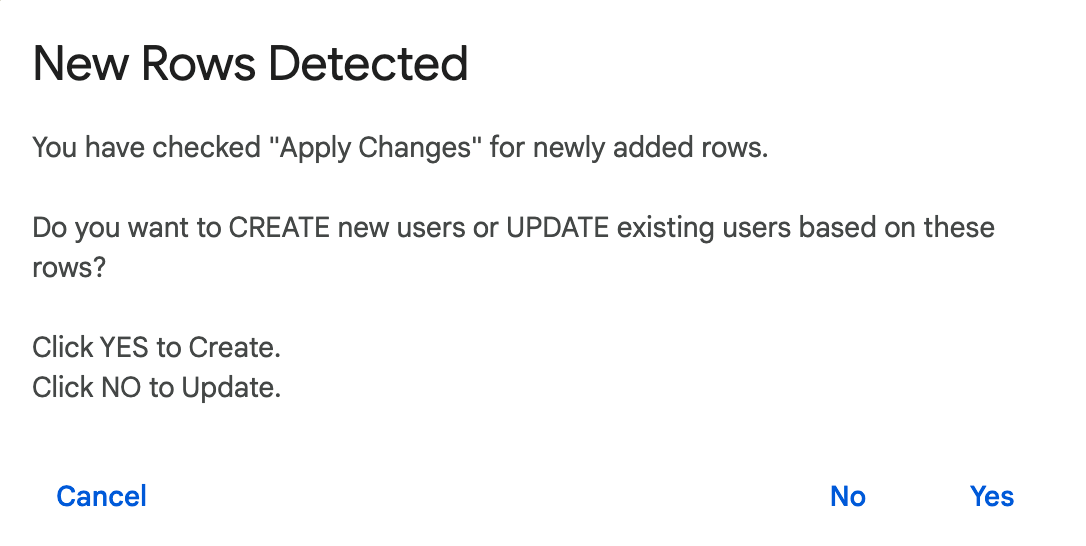
Hitting Spacebar triggers an interactive confirmation prompt. Select No (Update) to instruct SheetOps to update user orgUnitPath attributes, moving user accounts into their new organizational unit folders and applying inherited application policy rules.
5. Monitoring User OU Relocation Logs and System Output
While SheetOps updates user organizational unit assignments sequentially:
- Yellow edited cell indicators clear row-by-row as API updates conclude.
- The Change log column displays real-time execution feedback:
- ✓ Updated (highlighted in soft green) when the user account is successfully relocated to the new OU.
- ✗ error_message (highlighted in soft red) if the specified target OU path does not exist in your domain directory.
Video Tutorial
Watch this video guide to see how to bulk move users between Organizational Units (OUs) using SheetOps:

Troubleshooting & Best Practices
- Avoid Root Assignments: Placing users in child OUs rather than the root directory (
/) is a security best practice. Google recommends keeping the root OU reserved for top-level policy overrides and placing actual users in sub-OUs (see Google Workspace Organizational Structure). - Inheritance Delay: Policy and licensing settings applied via OUs may take up to 24 hours to propagate throughout Google Workspace. According to Google Workspace Service Propagation, while the directory update itself is instantaneous, service settings and policy changes can take up to 24 hours to apply to all users.
Frequently Asked Questions (FAQ)
What is the correct format for the Org Unit Path?
OUs in Google Workspace are formatted as hierarchical paths. The root organizational unit is /. Nested units must use forward slash separators, for example, /Departments/Engineering or /Sales/Europe. Do not omit the leading slash or end the path with a trailing slash.
Will moving a user to a new OU change their email address?
No. Moving a user to a different Organizational Unit only changes their administrative settings, permissions, and applied Google policies. Their primary email address, aliases, password, and Google Drive files remain completely unchanged.
Can I move multiple users to different OUs in a single operation?
Yes. You can edit the orgUnitPath cells for different users to point to completely different OUs. For example, Row 2 can point to /Marketing while Row 3 points to /Engineering. Tick 'Apply Changes' for both rows and apply; SheetOps will route each user to their respective OU.
Last updated: June 18, 2026

Ready to manage Workspace at spreadsheet speed?
Install SheetOps from the Google Workspace Marketplace today and start performing bulk directory updates, onboarding, and audits directly inside Google Sheets.