Bulk Change Google Workspace Passwords

SheetOps Google Sheets Add-on
This guide is for the official SheetOps add-on. Install it to manage Google Workspace at spreadsheet speed.
Executing mandatory security credential updates across employee accounts is essential during credential rotation cycles and incident response. SheetOps provides a secure, write-only spreadsheet workflow for bulk changing Google Workspace user passwords directly within Google Sheets without risking plain-text exposure.
Credential Security: Admin-driven password resets are essential for securing compromised accounts and onboarding new employees. According to cybersecurity reports, compromised credentials account for over 80% of data breaches. Google's official Google Workspace Security Best Practices recommend that administrators enforce strong password requirements and mandate resets immediately during key organizational lifecycle events.
Quick Answer: To bulk change Google Workspace user passwords with SheetOps: import your users, input new passwords in the Password column, check the Apply Changes checkboxes, and click confirm. SheetOps updates the credentials on Google and automatically clears the password text from the spreadsheet cells for safety.
Understanding Write-Only Password API Restrictions
The Google Workspace Admin SDK Directory API Users resource allows you to set a user's password using the password field, but it never returns existing passwords (for security reasons). Consequently, the Password column in SheetOps is write-only. It will always appear blank when you export data, but entering a new string will update the password.
Google Admin Console vs. GAM CLI vs. SheetOps
To help you choose the best workflow for your needs, here is a comparison of the primary methods for bulk password updates:
| Feature | Google Admin Console | GAM CLI | SheetOps (Spreadsheet) |
|---|---|---|---|
| Workflow | Manual user-by-user clicks or multi-step CSV file uploads | Write command-line syntax or build batch scripts for execution | Edit cells directly in Google Sheets and tick checkboxes to apply |
| Skill Curve | Low (basic admin dashboard interface) | High (requires terminal familiarity, API setup, and scripting) | Low (leverages standard spreadsheet edits and mouse actions) |
| Visual Staging | None (updates apply immediately or via blind CSV processing) | None (commands run immediately without a visual review state) | Yellow highlights flag pending changes before committing them |
| Execution Logs | Checked via email reports or Admin Console Tasks dashboard | Standard terminal stdout/stderr logs | Real-time status updates directly in the sheet's Change Log column |
How to Bulk Change Google Workspace Passwords
1. Prepare Your Spreadsheet Template
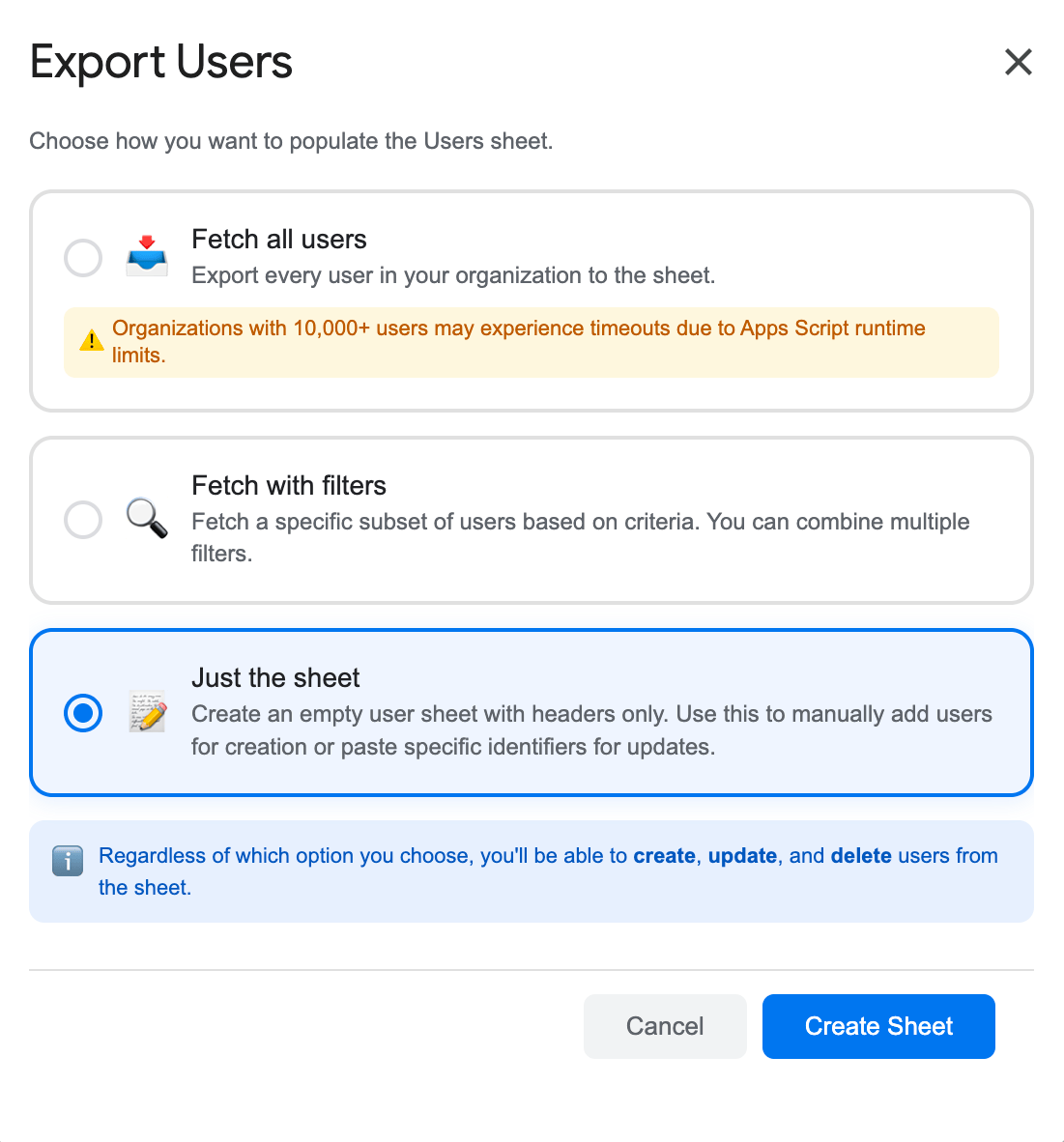
To target and update users, you have two options to bring them into the sheet:
- Fetch with Filters: Go to Extensions → SheetOps → Users, select Fetch with Filters, and choose your target criteria (such as a specific organizational unit) to bring existing users to the sheet. For a detailed guide on how to filter workspace users, refer to the filtering guide. Once imported, you can change passwords for them.
- Just the Sheet: Go to Extensions → SheetOps → Users, select Just the Sheet, and click Create Sheet to generate a clean template. You can then simply input the user email and password before checking the Apply Changes checkbox.
2. Input Password Changes
In the user sheet, locate the Password column:
- Input the new password for each target user in the Password column cell.
- All cells with pending data or updates will highlight yellow.
- Note that the Password field is write-only. The cell will be empty initially, and once applied, SheetOps will automatically clear it for security.
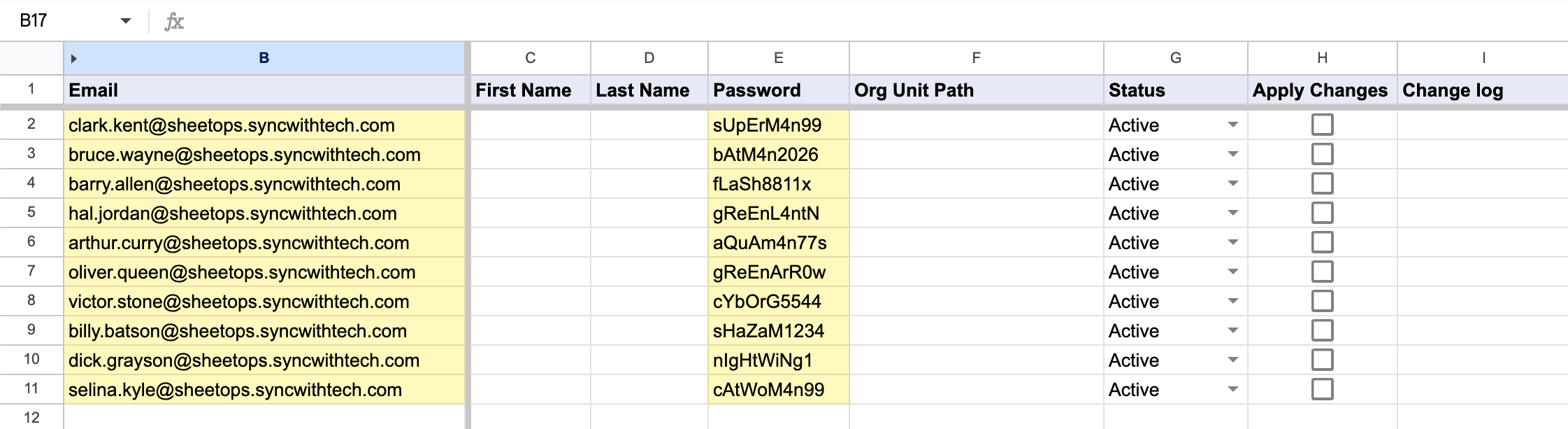
When you enter data, SheetOps automatically applies a yellow background to the edited cells. This visual indicator helps you keep track of pending changes before you push them.
Google Workspace requires passwords to be a minimum of 8 characters in length. If you specify a password shorter than 8 characters, the update will fail with an API error.
Optional: Require Password Change at Next Login
If you want users to change their password when they next log in:
- Go to Extensions → SheetOps → Choose display fields.
- Select the Users tab.
- Tick the checkbox next to Change Password Next Login (
changePasswordAtNextLogin). - Click Save to add this column to your sheet.
- Set the cell value to
TRUEfor the target users.
3. Selecting Multiple User Rows for Bulk Password Resets
Rather than checking each password update row individually:
- Click the first checkbox cell inside the Apply Changes column corresponding to your target user credential record.
- Select all target user rows needing password modification:
- Click and Drag: Hold the left mouse button down while dragging across the checkbox cells.
- Shift + Click: Hold Shift and click the final user password row in your selection list.
- Strike the Spacebar key to instantly activate all selected password reset checkboxes.
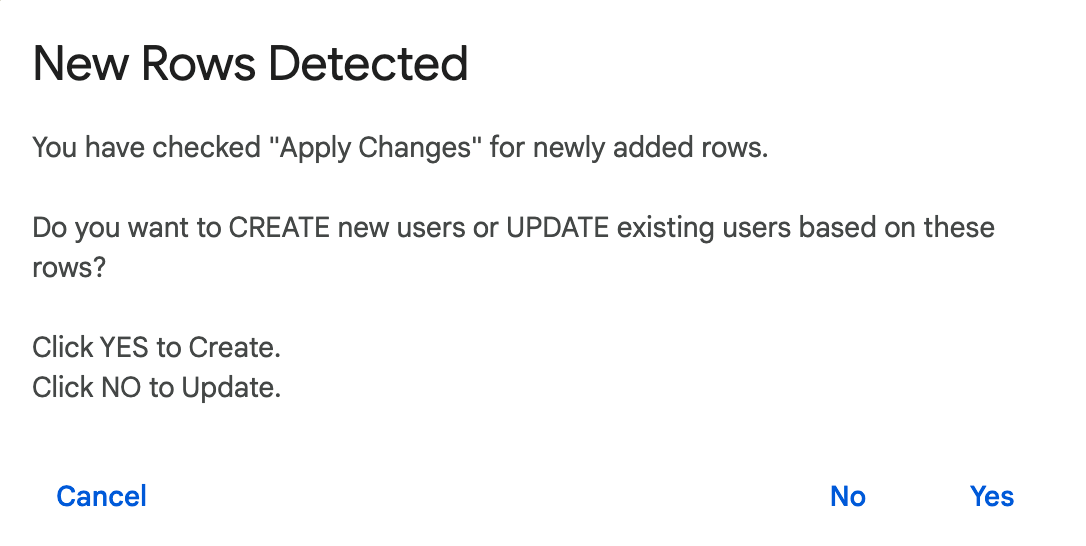
4. Executing Interactive Password Modification Prompt
When the confirmation dialog appears after pressing Spacebar, select No (Update). This directs SheetOps to push the new password strings to the Admin Directory API while enforcing domain password complexity rules.
5. Verifying Password Reset Success and Audit Trail
While SheetOps updates account passwords sequentially in the background:
- Automatic Cell Scrubbing: To prevent unauthorized viewing, SheetOps automatically wipes the plaintext password string from the sheet cell immediately after writing to Google's Directory API.
- The Change log column provides execution status:
- ✓ Updated (highlighted in soft green) when credentials update successfully.
- ✗ error_message (in soft red) if the specified password string fails minimum length requirements (under 8 characters).
Video Tutorial
Watch this video guide to see how to bulk change or reset passwords for Google Workspace users using SheetOps:
Troubleshooting & Best Practices
- Minimum Length: Always ensure passwords meet your Google Workspace domain's minimum requirements (at least 8 characters by default, but could be longer if set by policy).
- Temporary Passwords: It is highly recommended to set Change Password Next Login to
TRUEso users are prompted to create a secure personal password immediately. - Single Sign-On (SSO) Users: If your domain uses SSO (e.g., Okta, Microsoft Entra ID), password updates in the Google directory will only affect direct Google logins and will be bypassed by federated logins.
- Spreadsheet History Cleansing: Although SheetOps automatically clears passwords from the cell upon success, Google Sheets maintains a cell version history. If sharing the sheet, remember to delete version history or use a temporary scratch spreadsheet.
Frequently Asked Questions (FAQ)
Can I retrieve or see a user's current password in SheetOps?
No. Google Workspace Directory API does not store passwords in plain text and does not provide an endpoint to read passwords. The column will always load as empty, but any values you type there will be sent as the new password.
What is the password complexity requirement for Google Workspace?
By default, Google Workspace passwords must be at least 8 characters long and cannot contain common patterns. If your domain has set custom password strength rules, those rules apply to API updates as well. If a password fails complexity requirements, the change log will record the API error.
Why does the password cell go blank after I click 'Apply Changes'?
SheetOps automatically clears the cell values in the Password column upon a successful API write. This is a crucial security feature that ensures clear-text passwords are not stored in the spreadsheet grids.
How do I force users to change their password at next login?
Bring in the Change Password Next Login column using the Choose display fields settings menu under Extensions → SheetOps, set it to TRUE for the corresponding users, and apply the update.
Related Guides
- Bulk Create Google Workspace Users
- Bulk Suspend Google Workspace Users
- Bulk Move Users to Organizational Units
Last updated: August 6, 2026

Ready to manage Workspace at spreadsheet speed?
Install SheetOps from the Google Workspace Marketplace today and start performing bulk directory updates, onboarding, and audits directly inside Google Sheets.