Bulk Create Google Workspace Users from Sheets

SheetOps Google Sheets Add-on
This guide is for the official SheetOps add-on. Install it to manage Google Workspace at spreadsheet speed.
Onboarding new employee cohorts or provisioning student accounts individually in the Google Admin Console requires navigating repetitive web forms for every team member. SheetOps enables IT operations to bulk create and provision hundreds of Google Workspace user profiles simultaneously directly from Google Sheets.
Understanding Bulk User Creation in Google Workspace
SheetOps utilizes the Google Admin Directory API to insert new user records. You populate a sheet with your new user details, select the Apply Changes option, and SheetOps executes the creations sequentially in the background, writing the results back to your sheet in real time.
Google Admin CSV vs. GAM vs. SheetOps
While the Google Admin Console supports manual creation and CSV uploads, and GAM offers command-line automation, each has limitations for everyday management:
| Criteria | Admin Console CSV | GAM CLI | SheetOps |
|---|---|---|---|
| Interface | Form uploads (CSV) | Command Line | Google Sheets |
| Validation | Post-upload errors | None (requires scripting) | Live Delta-Validation (Yellow Highlight) |
| Safety Net | None | High risk of bulk errors | Permission safeguards + Visual preview |
| Setup Time | Immediate (fragile) | High (requires local installs) | Immediate (browser-based) |
Step-by-Step Guide to Importing and Creating Google Workspace Users
1. Prepare Your Spreadsheet Template
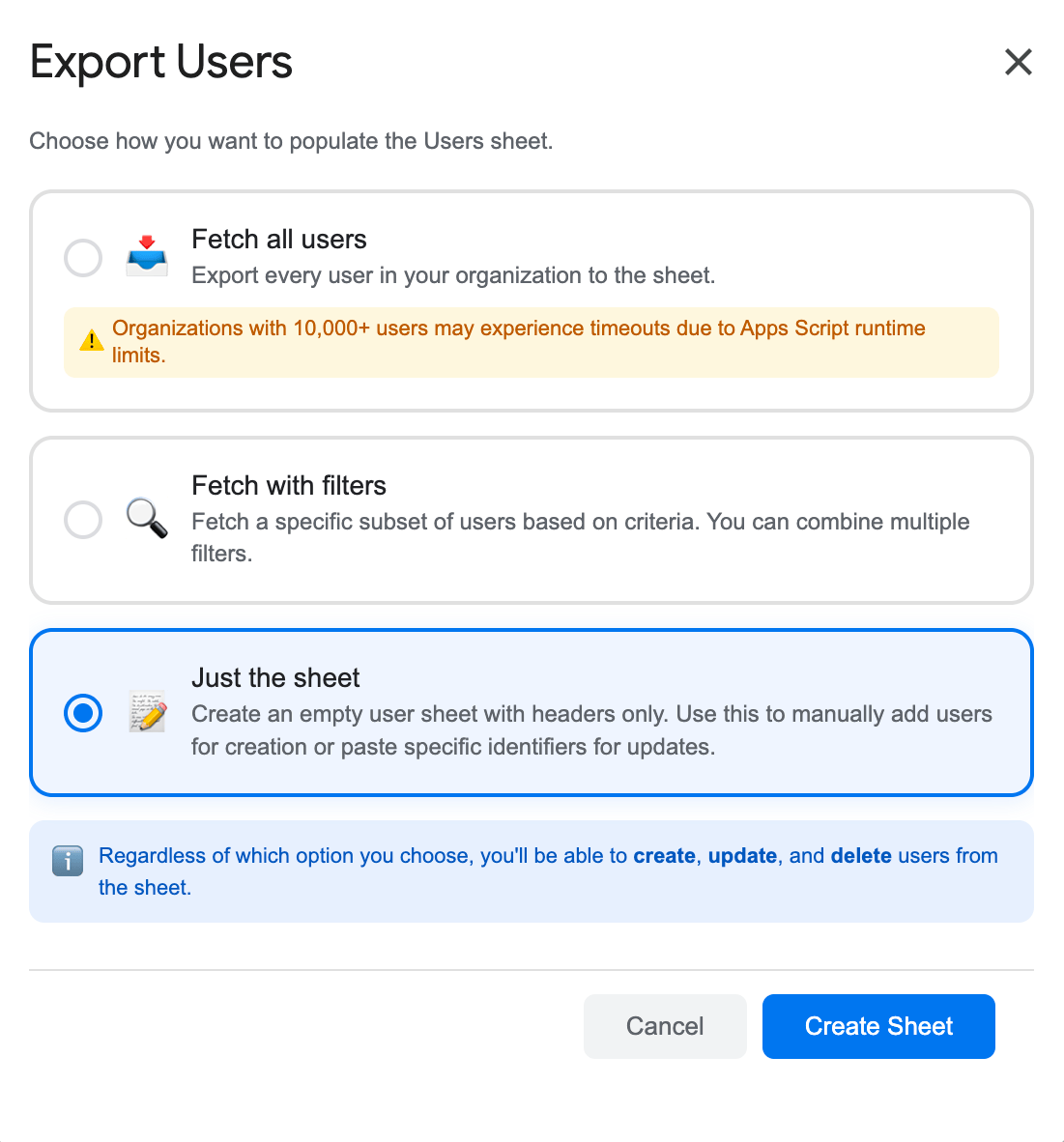
Go to Extensions → SheetOps → Users. In the export options dialog, select Just the Sheet, and then click Create Sheet. This generates a clean template with headers, validation dropdowns, and checkboxes, but no data rows.
2. Input Your New User Information
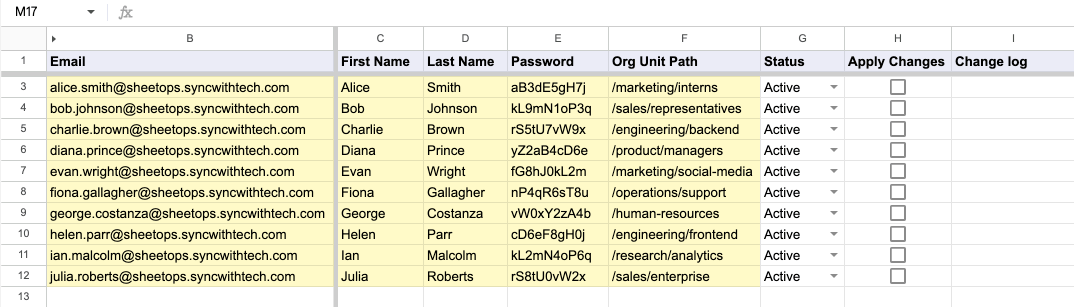
Add your user data to the sheet. The required fields are:
- Email (Primary Identifier): The new user's email address (e.g.,
[email protected]). - First Name and Last Name: The user's name details.
- Password: The temporary password for the user. (This column is write-only; it will be cleared after creation for security).
In addition to the required fields, users can also add an Org Unit Path, aliases, etc. You can easily copy and paste multiple rows of user data at once. All cells with pending data will be highlighted in yellow, waiting to be created.
Generating Temporary Passwords: You can quickly generate random alphanumeric temporary passwords in Google Sheets using the formula =BASE(RANDBETWEEN(10^10, 10^14), 36). When transferring generated passwords into the SheetOps template, be sure to paste them as Values Only (Cmd + Shift + V on Mac or Ctrl + Shift + V on Windows) so raw password strings are stored rather than dynamic formulas.
When you enter data, SheetOps automatically applies a yellow background to the edited cells. This visual indicator helps you keep track of pending changes before you push them.
3. Selecting Multiple User Provisioning Rows Instantly
To mark your drafted new user accounts for immediate creation:
- Click the first checkbox cell in the Apply Changes column corresponding to your new user row.
- Select all target user profile rows:
- Cursor Drag: Hold your left mouse button down and drag across all target user row checkboxes.
- Shift + Click: Hold down Shift and click the final user entry in your spreadsheet table.
- Press Spacebar to toggle all selected checkboxes to checked at once.
4. Authorizing Bulk User Account Provisioning
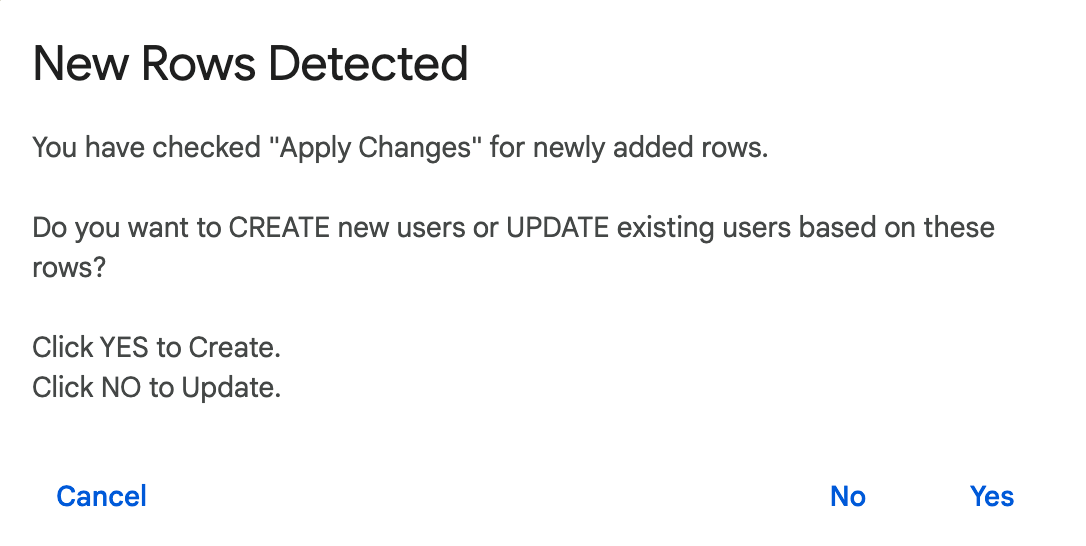
When the modal window pops up after pressing Spacebar, select Yes (Create) to authorize SheetOps. The add-on connects to the Directory API Users resource to initialize new user mailboxes, and assign Organizational Units if provided.
5. Verifying User Google IDs and Output Logs
As user creation operations process sequentially:
- Delta yellow cell highlights disappear row-by-row upon successful API insertion.
- The Change log column displays real-time execution outputs:
- ✓ Created (highlighted in soft green) alongside Google's assigned unique 21-digit internal User ID.
- ✗ error_message (highlighted in soft red) if primary email domain validation fails or account collisions occur.
Video Tutorial
Watch this video guide to see how to bulk create and provision users in Google Workspace using SheetOps:
Troubleshooting Google Workspace Bulk Creation Errors
- License Limits: If you are using the free version of SheetOps, you can perform up to 200 write operations before needing to upgrade.
- Email Domain Validation: The email domain must match one of the verified domains in your Google Workspace account.
- Timeout Limitations: Apps Script limits executions to a 6-minute execution limit. If you are importing 1,000+ users, process them in batches of 100-200 rows at a time to avoid script timeouts.
Frequently Asked Questions (FAQ)
Can I set more fields when creating users in bulk?
Yes! You can add more user fields using the Choose display fields dialog. Any additional fields you check will be drawn as blank columns, and you can fill them out before checking 'Apply Changes' to include them in the creation payload.
What happens if I choose 'Update' instead of 'Create' for new rows?
If you choose 'Update' for a row that does not contain an internal ID in Column A, SheetOps will use the user's Primary Email as the API identifier. If that user already exists in Google Workspace, it will update their details; if they do not exist, the API will return a 'User Not Found' error.
Why is the password cleared after I create the user?
For security and privacy compliance, SheetOps removes the password string from the spreadsheet immediately after a successful API creation call. This prevents temporary passwords from being exposed to other spreadsheet viewers.
Last updated: September 30, 2026

Ready to manage Workspace at spreadsheet speed?
Install SheetOps from the Google Workspace Marketplace today and start performing bulk directory updates, onboarding, and audits directly inside Google Sheets.