Bulk Remove Google Workspace Group Members

SheetOps Google Sheets Add-on
This guide is for the official SheetOps add-on. Install it to manage Google Workspace at spreadsheet speed.
Revoking stale group memberships and removing subscribers from Google Workspace distribution lists in the Admin Console is tedious for large mailing lists. SheetOps simplifies group member cleanup by allowing IT administrators to bulk remove group members directly from Google Sheets with visual confirmation and real-time logs.
Quick Answer: To bulk remove group members with SheetOps: export the group members to a sheet, change their Status to Remove, select the Apply Changes checkboxes, and execute the update. This immediately removes them from the group.
Understanding Group Member Removal Mechanics
Changing a member's status to Remove in the spreadsheet instructs SheetOps to make a delete API call to the Google Directory API's members.delete endpoint. SheetOps applies these updates sequentially and logs the status of each removal directly in the spreadsheet in real time.
Google Admin Console vs. GAM vs. SheetOps for Member Removal
While you can remove members manually in the Google Admin Console or write terminal scripts using GAM, SheetOps provides a safer, faster way to manage group member removals. Clicking through the Google Admin Console to manually remove 100 members takes approximately 15 to 20 minutes, whereas SheetOps completes the task in under a minute directly from your spreadsheet.
| Criteria | Admin Console | GAM CLI | SheetOps |
|---|---|---|---|
| Bulk Operations | Manual deletion or rigid CSV uploads | Scripted command-line commands | Familiar copy-paste and fill-handle drag in spreadsheets |
| Safety Net | None (removals are immediate) | None (removals are immediate) | Live validation and visual staging (highlighted in yellow) |
| Change Tracking | Admin audit logs in console | Command line output logs | Real-time status updates directly in the sheet's Change Log column |
How to Bulk Remove Google Workspace Group Members
1. Prepare Your Spreadsheet Template
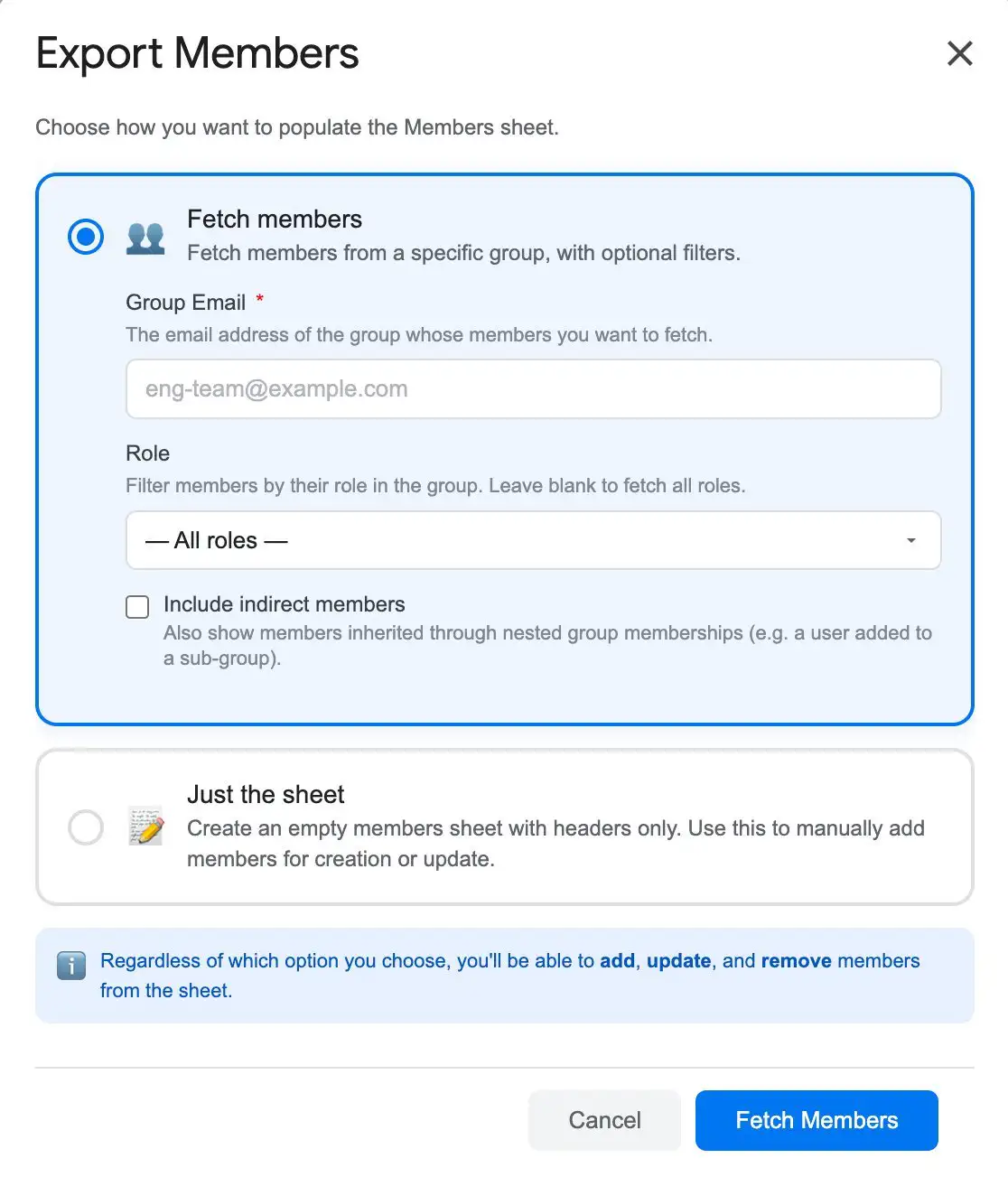
To target and remove group members, you have two options to bring them into the sheet:
- Fetch Members: Go to Extensions → SheetOps → Members, select Fetch Members, enter the target Group Email, choose optional filters (Role, Include indirect members), and click Fetch.
- Just the Sheet: Go to Extensions → SheetOps → Members, select Just the Sheet, and click Create Sheet to generate a clean template.
2. Input Group and Member Email Pairs
If you generated a template using Just the Sheet:
- Group Email: Enter the email address of the target Google Workspace group (required).
- Member Email: Enter the email address of the member to remove (required).
Note: If you used Fetch Members, these columns will already be populated, but you can manually add or modify pairs here.
3. Setting Membership Status to Remove
In the member spreadsheet table, update the target membership rows:
- Choose Remove from the dropdown menu for your first member entry.
- Bulk Action Tip: Click and drag the cell fill handle over remaining target rows to copy Remove across all selected member entries.
- Edited cells will highlight yellow to flag pending updates.
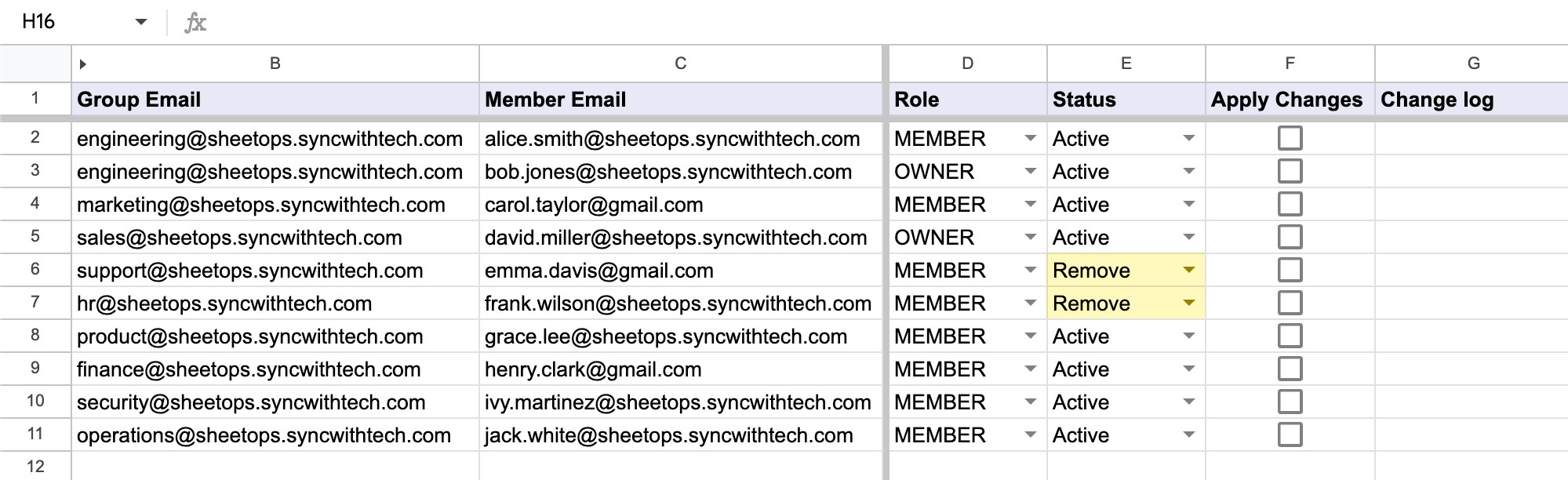
When you enter data or select dropdown choices, SheetOps automatically applies a yellow background to the edited cells. This visual indicator helps you keep track of pending changes before you push them.
Removing a member from a group immediately stops them from receiving emails sent to that group. Ensure you are targeting the correct group and member emails before proceeding.
4. Mass-Selecting Group Membership Rows for Removal
To execute member removals in bulk without checking individual boxes:
- Click the first checkbox cell inside the Apply Changes column corresponding to your member removal row.
- Select all target membership entries:
- Cursor Drag: Hold your mouse button down while dragging over the checkbox cells.
- Shift + Click: Hold Shift on your keyboard and click the last member row in your table.
- Strike the Spacebar to check all selected membership removal checkboxes simultaneously.
5. Authorizing Group Membership Eviction
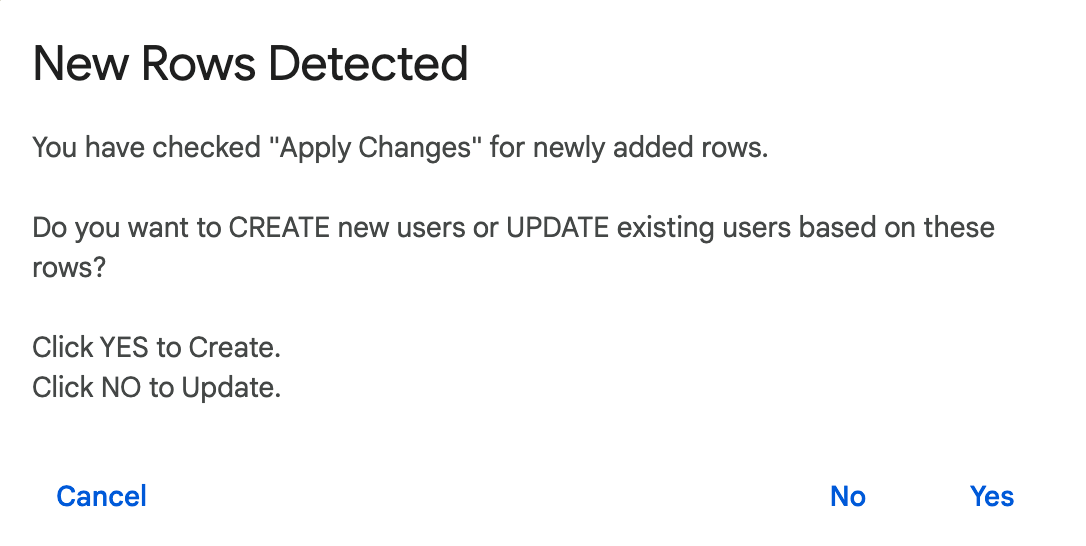
When the confirmation prompt appears after hitting Spacebar, select No (Update). This authorizes SheetOps to make API calls to the members.delete endpoint, removing selected users from group rosters without affecting their underlying Google Workspace user accounts.
6. Reviewing Group Membership Removal Status and Logs
As group member removals execute sequentially in the background:
- Yellow highlights clear row-by-row upon completion.
- The Change log status column provides execution feedback:
- ✓ Deleted (highlighted in soft green) when the user is successfully evicted from the Google Group.
- ✗ error_message (highlighted in soft red) if API permissions or group locks prevent removal.
Video Tutorial
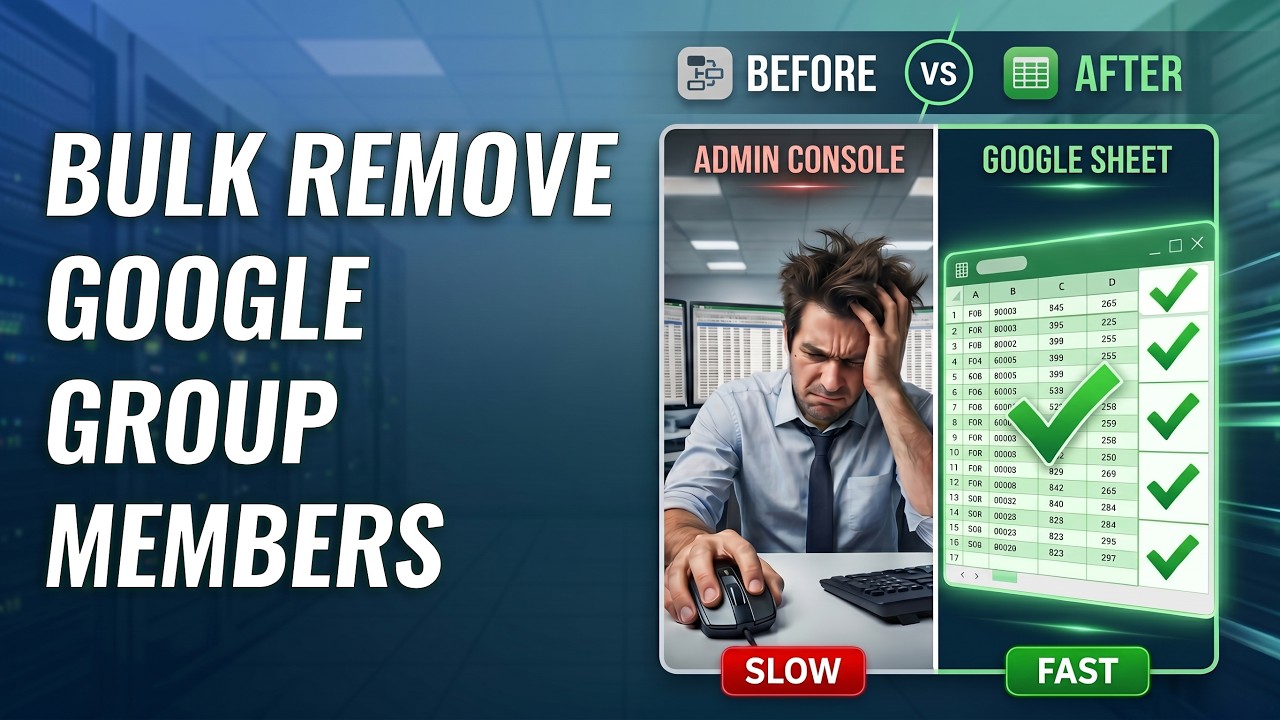
Watch this video guide to see how to bulk remove Google Workspace group members using SheetOps:
Troubleshooting & Best Practices
- Indirect Members Read-Only: If you check Include indirect members during export, nested group members will be listed. You cannot remove indirect members directly from this sheet because they inherit membership from parent groups.
- Data Safety: Removing a member from a group does not delete their Google Workspace user account or data; it only revokes group membership and access.
- Timeout Limitations: Google Apps Script execution limits apply (6-minute limit). When removing 1,000+ members, process them in batches of 100-200 rows at a time to prevent timeouts.
- Bulk Adding Members: If you need to add new members to your groups instead of removing them, follow our step-by-step guide on Bulk Add Google Workspace Group Members.
Frequently Asked Questions (FAQ)
Does removing a member from a group delete their Google Workspace account?
No. Removing a member from a group only revokes their group membership and stops group email delivery. It has no effect on their primary Google Workspace user account, emails, or Google Drive files.
Can I undo a group member deletion?
Yes. If you accidentally remove a member, you can re-add them by changing their status dropdown back to Active, selecting the row, and confirming the operation with Yes (Create) in the interactive dialog.
Can I see who deleted a group member in SheetOps?
SheetOps does not store deletion history. However, all group membership changes performed via the Admin Directory API are logged in your Google Workspace Admin Audit Log in the Google Admin Console.
Last updated: August 6, 2026

Ready to manage Workspace at spreadsheet speed?
Install SheetOps from the Google Workspace Marketplace today and start performing bulk directory updates, onboarding, and audits directly inside Google Sheets.